Showing posts with label fixing. Show all posts

Sunday, 17 February 2013

Joomla 3 and MAMP

So, just trying to start a new site in Joomla 3. On the first page one of the items says this:

Magic Quotes GPC OffNo

It basically won't install unless Magic Quotes GPC is turned off.

Found the answer here by 

All other answers were pointing towards fooling Joomla into thinking that either it didn't need GPC turned off, or that it needs the feature turned on. The correct way would of course to have the system setup to how joomla would need it (hence the verification stage here).

Basically, found php.ini in two folders:
Applications/MAMP/bin/php/:
php5.2.17
php5.3.6
/config/php.ini

in 5.3.6 I only found the following lines:

; Magic quotes
;
; Use Sybase-style magic quotes (escape ' with '' instead of \').
magic_quotes_sybase = Off
in 5.2.17 I found these more promising lines:
; Magic quotes
;
; Magic quotes for incoming GET/POST/Cookie data.
magic_quotes_gpc = On
; Magic quotes for runtime-generated data, e.g. data from SQL, from exec(), etc.
magic_quotes_runtime = Off  
; Use Sybase-style magic quotes (escape ' with '' instead of \').
magic_quotes_sybase = Off 


I edited the line in 5.2.17 to no avail. I also looked in MAMP which said it was using php 5.3.6 anyway.

I looked on MAMP's website and found that the latest version of MAMP comes with version 5.4.4. I also read that PHP 5.4.4 has depricated Magic Quotes! as of 5.3.

So, the easier solution would be simply to upgrade MAMP.

After doing so I found that I had to put my MYSQL password in for MAMP to be able to use mysql. In these files (found in a previous blog):


  1. Go to MAMP/bin/mamp/index.php and change the password bit
  2. Got to MAMP/bin/MyPHPAdmin/config.inc.php and change the password bit in here too
Done!!!
Joomla 3 worked after this.


Monday, 19 December 2011

CD and DVD drives "Device cannot start" error 10 in device manger - Windows

A member of staff brought in their PC today saying that the DVD drives (there are two) don't work.

Looking in Device manager I found that both DVD drives were down as CD drives and in the details it says something along the lines of:
The device cannot start error 10

My first idea was to do with Master and Slave jumper switches on the back of the DVD drives. Tried all the combinations. For some the drives came up as their actual names, but still came up with the error message.

After this I did a system restore to its' earliest point. Still no luck.

I finally thought it had to do with iTunes. I've experienced it before, when installing iTunes the CD drive stops working in Windows. I had a search around on google and found this forum. It seemed promising and pointed towards this Microsoft troubleshooting guide.

Also, another tutorial is here from Apple who admit the problem.

Although this was to do with Windows XP and error 31 I found other forums mentioning the registry and "Upper Filters" and "Lower Filters". I deleted the UpperFilter registry entry mentioned and it worked a treat.

Basically:

  1. load up Regedit by going to Start > Run > Regedit
  2. go to:
    1. HKEY_LOCAL_MACHINE\SYSTEM\CurrentControlSet\Control\Class\{4D36E965-E325-11CE-BFC1-08002BE10318}
  3. delete the UpperFilter, usually at the bottom
  4. Reboot the machine
Done

Tuesday, 15 November 2011

Why NHR didn't work! Finally

So, after many, many trials and tribulations I've finally worked out why NHR wasn't working. Simply because I tried to install it over itself. Basically the files were already there. Doh!

So to fix it in all the mac suites I basically have to:

  1. Get rid of the NHR files on't computers
    1. run the uninstall file
    2. run a small script to delete the /etc/hooks and /etc/login.hook and /etc/logout.hook
  2. Install the NHR.pkg file again (through task server)
So, as I'm running it all through the task server anyway, I'll try and line up the uninstall and install files sequentially, so that it works in the right order. It should do.


Done 

Thursday, 10 November 2011

Photoshop CS 5 3D rotate opengl error

Had an error with a machine a student was using. The error happened when trying to 3D rotate the document. It read:

Could not complete your request because it only works with OpenGL enabled document windows.

Whilst being slightly helpful as to hinting at the problem, I do wish it would try and solve the problem itself. After doing a quick search on the internet I found a nice little Adobe Forum quickly explaining that you need to have an OpenGL compliant graphics card. This didn't help either because just about everyone does!!

So I found another forum saying that OpenGL has to be enabled in Photoshop, and as a default on Windows XP it is switched off (bad move).

I eventually worked out where the tick box was (which wasn't explained in the forum!!!)


  1. Go to Edit > Preferences > Performance...
  2. Click on Enable OpenGL Drawing.


Of course now I find out that another machine doesn't have a graphics card (it's onboard). Doh!

Wednesday, 19 October 2011

Lending Library Database Template Current Lending Issues

Well, I do believe that I have a previous post describing my want of a booking out system, and having found the "Lending Library Template", posted here. I've started testing.

One problem found was that if you viewed a persons details (Contact Details form) and clicked on "Current Lending" tab, it would list ALL off the items being lent out to EVERYONE. This of course wasn't the intended design I can imagine, and so is a slight fault.

After doing a few google searches I found two people with the same problem, and the second of which was lucky enough to get talking to an expert. He found the problem to be with the table in the tab. It simply needed "Link Master Fields" to have "ID" and "Link Child Fields" to have "Checked Out To" in the properties.

Change "Linked Masters Fields" to ID and "Linked Child Fields" to Checked out to

This worked a treat. Thank you HiTechCoach

Wednesday, 21 September 2011

Notify users when their disk space is running low

Well, after my last post about listing problems to fix and make my job that much easier, I thought I'd look up a script I had a while back which notified users when their disk space was running low. It really did save a lot of time and effort, as users would know exactly what the problem was: That their disk space was running LOW!

I couldn't make the script on my own back then (and still couldn't now) so I put up a "Help me" topic on the Apple Discussions and low and behold, someone came to help, amazing!

Here's the code, although you might have to read the discussion to get the right syntax as it didn't post quite right:

--****BEGIN SCRIPT
idle
on idle
set message_ to "Stephen! Don't trouble the technician, delete some files!"
set MinAllowFS to 20
try
set bootDiskInfo to do shell script "diskutil list | grep 'stephen'"
set bootDiskID to last word of bootDiskInfo
set FSinfo to do shell script "diskutil info " & bootDiskID & " | grep 'Free Space'"
set ActFS to word 3 of FSinfo

--Pick one or more of the following responses by removing the comment ("")

--if ActFS < MinAllowFS then beep 3

--if ActFS < MinAllowFS then display dialog message_

if ActFS < MinAllowFS then say "[[rate 180]]" & message_
end try
return 10 --<< Here's where you set the repeat rate in seconds
end idle
--
****END SCRIPT


The message wasn't quite what I had in mind. I wanted to inform the students that their disk space was running low and might cause some problems. They should take action by moving files off their home space, and emptying the trash. Something more along the lines of:

set message_ to "Your home space is running low, this may cause applications to crash and even corrupt you files. Please move some files off your home drive and don't forget to Empty the Trash."

The MinAllowFS is the threshold for the message to kick in, currently set to 20MB

As I wanted it to run for any networked user that was logged in, I ended up using the command "df -k -m" instead of "diskutil list". This lists all volumes mounted and the amount of space left in MB (-m). This df command is more useful then the 'diskutil' command as it gives us the free space straight away. The specific line from this list contains the word "students" so this line would read:

set bootDiskInfo to do shell script "df -k -m | grep 'students'"

Word 4 of this is the amount of disk space left, in MB

set ActFS to word 4 of bootDiskInfo

So the whole script should read:

--****BEGIN SCRIPT
idle
on idle
set message_ to "Your home space is running low, this may cause applications to crash and even corrupt you files. Please move some files off your home drive and don't forget to Empty the Trash."
set MinAllowFS to 20
try
set bootDiskInfo to do shell script "df -k -m | grep 'students'"
set ActFS to word 4 of bootDiskInfo

--Pick one or more of the following responses by removing the comment ("")

--if ActFS < MinAllowFS then beep 3

if ActFS < MinAllowFS then display dialog message_

--if ActFS < MinAllowFS then say [[rate 180]] & message_


end try
return 300 --<< Here's where you set the repeat rate in seconds
end idle
--
****END SCRIPT


------------------ 28/09/2013 ----------------
I've just came back to this post and finally got around to implementing it. I ended up with a problem having two lines of output from the df command, because two lines contain the word 'student'. To solve this, I had to use the grep -v option, which is the inverse of the grep command, finding the lines without it in. So trigger is on the line I don't want so the command I used was:

df -k -m | grep 'students' | grep -v 'trigger'


Script is now:


--****BEGIN SCRIPT
idleon idleset message_ to "Your home space is running low, this may cause applications to crash and even corrupt your files. Please move some files off your home drive and don't forget to Empty the Trash."
set MinAllowFS to 10
tryset bootDiskInfo to do shell script "df -k -m | grep 'students' | grep -v 'trigger'"
set ActFS to word 6 of bootDiskInfo
--Pick one or more of the following responses by removing the comment ("")
--if ActFS < MinAllowFS then beep 3
if ActFS < MinAllowFS then display dialog message_
--if ActFS < MinAllowFS then say [[rate 180]] & message_
end tryreturn 300 --<< Here's where you set the repeat rate in seconds
end idle

Now I have written a few programs, I'm getting the hang of writing them properly. A few things I would like to adjust are:

  1. verify (assert!) that ActFS is set to an appropriate number (not a letter or symbol)
  2. check if it is a member of staff and not a student and look for "staff" instead
  3. feed back to the user how much disk space there is free, total disk quota.
  4. give user the option of running a utility which will help identify larger files and folders
  5. contact administrator for help (either by remote desktop or email)

Tuesday, 20 September 2011

Little problems to fix in the future

Going along the line of making programs to fix problems, I thought I'd compile a list of problems which can be added to the "Fix Everything Please" Application:

  • Checking Users Home Space and notifying them
  • Deleting erroneous files and Emptying the trash
  • Showing users the files worth deleting from their home space
I shall add to this list as time goes by...

Making a pkg file to distribute through ARD Task Server


After making my little "Fix Everything Please" Automator Application I wanted to distribute it to all the machines, and the easiest way of doing this is using the much unused Task Server I have set up through Apple Remote Desktop. I have done this process before, but not documented it very well. What's worse is that I cannot find the newest "PackageMaker" application since re-imaging my machine, only the one which comes with Remote Desktop, which was originally for OS X 10.4! Apparently you can download it with the newest iPhone SDK which comes with XCode.

So, after some looking I found a well reviewed Package Maker app called Iceburg. Downloaded it, installed it and rebooted. Apparently it's a lot simpler then PackageMaker and I'd made the package in about 3 minutes. This is how I did it:

  1. Make a "New Project"
  2. Fill in the "Settings" section:
  3. Settings section of Iceburg Package Maker
    1. I put Admin Authorisation so there would be some control
  4. Fill in the Files section at the bottom:
    1. I clicked on Applications and pressed the "Set" button to set this as the Directory it was going
    2. Files section of Iceburg Package Maker
    3. I right clicked on the Applications folder and chose "Add Files..." and chose "Fix Everything Please.app" (I made sure the permissions were right in Finder before I did this)
  5. Clicked "Build and Run" in the top menus
Worked a charm. I had a little trouble getting the permissions right. At first it would make it "Read Write" for "Everyone". I changed the permissions and then re-added it to Iceburg and it seemed to work.

Monday, 19 September 2011

Making an Application which fixes all the little things

Fix Everything Please Application
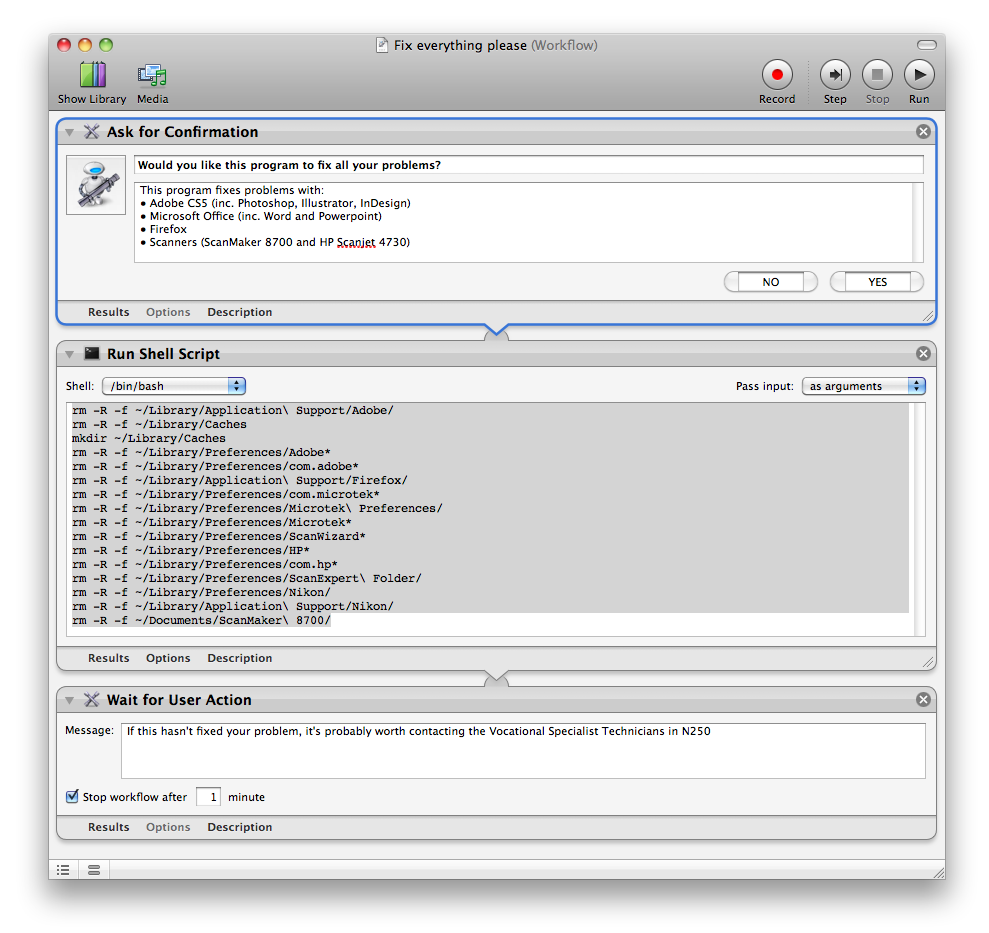
A while ago I had the idea of making a little application which fixes any little problems we have in the college with the Apple Mac accounts. Part of the trouble is to do with the Active Directory accounts, but a lot of the trouble comes from Applications coming up with errors related to the preferences.

Basically, this program deletes preferences and folders to all the programs which cause the most problems.

I made the program in Automator, and it basically just runs a shell script with a lot of 'rm' for removing stuff. I originally tried using a lot of the options in the library to find certain files and put them in the trash. This doesn't work for different users though, as they have a different location for their home drive. So I ended up using the '~' option to specify the users home drive:

these three lines remove anything related to Adobe:

rm -R -f ~/Library/Application\ Support/Adobe/
rm -R -f ~/Library/Preferences/Adobe*
rm -R -f ~/Library/Preferences/com.adobe*

this removes the key Firefox preferences, which cause it to say "A copy of Firefox is already open"
rm -R -f ~/Library/Application\ Support/Firefox/

this removes any ScanWizard preferences
rm -R -f ~/Library/Preferences/com.microtek*
rm -R -f ~/Library/Preferences/Microtek\ Preferences/
rm -R -f ~/Library/Preferences/Microtek*
rm -R -f ~/Library/Preferences/ScanWizard*
rm -R -f ~/Documents/ScanMaker\ 8700/

this removes any HP Scanner preferences
rm -R -f ~/Library/Preferences/HP*
rm -R -f ~/Library/Preferences/com.hp*
rm -R -f ~/Library/Preferences/ScanExpert\ Folder/

This removes Nikon references for the Nikon browser
rm -R -f ~/Library/Preferences/Nikon/
rm -R -f ~/Library/Application\ Support/Nikon/

This removes the Network Home Relocation for the Caches folder and makes a new one

rm -R -f ~/Library/Caches
mkdir ~/Library/Caches

I added the -R so that it would force the removal, and the -f so it doesn't come up with an error if the file/folder doesn't exist.

Here's a screenshot of the workflow in Automator:

Automator workflow for "Fix Everything Please"
It proves very popular amongst the students and staff here, and I just add to the list when another program has this sort of problem. I just have to work out a quick way of deploying it to all the workstations, hopefully make a '.pkg' file and put it to the task server.

Thursday, 1 September 2011

Setting Ignore ownership on this volume from Command Line ARD

I have a lot of computers, all with a separate volume for storage of files, mostly for Video editing storage. After re-imaging them all I need to set the other volume, which is named "Scratch Disk" so that it does not have any permissions, as it causes issues when groups of students use the same files.

This is a little tick box in the 'Get Info' box for that volume in the Finder. But to do it on all these macs would not be economical with my time. So the best thing to do would be to find the command line argument for it, and use Apple Remote Desktop (ARD) to send this command to all the computers.

After a quick search I found this article by apple explaining how to do the opposite; "do not ignore ownership on this volume". To do this the code was:


sudo vsdbutil -a /Volumes/NewHD/
I did a quick man on this "vsdbutil" and found the argument I was looking for -d. So the actual line to use is:
sudo vsdbutil -d /Volumes/Scratch\ Disk/
notice the "\" character just after the word "Scratch", which denotes that there is a space after it. Of course I run the command line as a root user so no need to have the "sudo" at the front.

Wednesday, 31 August 2011

Wacom Bamboo pen not working

I've just tried to use a Bamboo tablet in Windows XP and only the 'Rubber' end of the pen seems to work. This suggests either something is wrong with the 'nib' end of the pen, or something wrong with the installation of the software (drivers).

The easiest thing to do was to have a look at the installation, and the preferences for the device. So, under Start > Programs > Bamboo > there were two preference shortcuts. I loaded up the basic one, fiddled with it but no solutions. The other preference shortcut let you have two choices:

  1. Delete preferences for the user
  2. Delete preferences for all users
Having seen this option my initial conclusion was that a lot of users have some problems with the preferences, and hence the need for these options. It was quite convincing that this might be related to my problems and so I went for option 2! Alas, pointless. These options also point to poorly made software. Users should not have to deal with these sort of problems!


My next thing to do would be to rule out the drivers by trying it on a machine that it used to work on (mac OS X) but the staff member was too busy so I thought I could look up anyone else who might have the same problem.

I found one particular person with a very nicely written blog post! He refers inspiration from this post. He had the exact symptoms as described above and found the problem lay with a broken electromagnet inside the nib end of the pen. He then goes into the particulars of fixing it. There are also a lot of comments below of thankful users.

I shall try the tablet on a machine which it definitely worked on before, and if the symptoms persist, I shall refer back to this article.

Thursday, 12 May 2011

iPhone 3G GPS

So now, after many trials and tribulations the phone is working well. But I've just found that the GPS is not working. There are many posts which describe when you update your phone to baseband 06.15 then you loose GPS! Doh! and no way back. Well, I've just seen this video which might look promising.

I shall update this post.

Wednesday, 11 May 2011

iPhone 3G earpiece problem

I've now an iPhone 3G with 4.1 OS and 06.15 baseband. Jailbroken and unlocked. The only problem now is that the earpiece does not work. So the plan is to replace the earpiece. I have two options, either send it off or do it myself. To send it off is about £35, to do it myself is about £4, so I'm not sure.

Here is a youtube video on how to dismantle.

Here is a video to replace earpiece.

Otherwise, I could take it here and get it sorted for £29.00 excluding postage. Or this one at £35 which has good reviews.
Thinky, thinky, thinky.

Monday, 28 March 2011

Copying printers from one computer to another - windows

I've currently got a PC running windows server 2000 acting as a print server. It's essentially just sharing it's printers, but all computers in the department use the shared printers on this computer. It runs very well even though the computer is about 8 years old. We've also got PaperCut NG install with unlimited user license which gives each user £2 credit each week and deletes any jobs costing more then what the user has in credit. It's saved a lot of money down to wasted prints!

Just one problem we have now is that if this old computer fails, no one can print in the department. My plan is to copy the printers from this computer to another and if the server fails, simply rename the new computer to the old computers name and everything should go quite smoothly. The only thing which won't work is the print quotas, but this wouldn't take too long to fix.

So, after reading up on how other people do it (and also trying your simple copy and paste and other menu's on the computer) I found this where they talk about Print Migration Utility. Works like a dream. Load it up on the original computer, backup the printers to a cab file. Load the program on the new computer and restore it from the cab file. Takes a while as it installs all the correct printer drivers, but what amazed me was that it was from windows server 2000 to windows xp. Perfect.

Tuesday, 15 March 2011

Adding local users to OS X via Command Line - Apple Remote Desktop

Media wanted all apple macs to have a "Media" login, and show a list of users for the login window. As I'd done this before I thought it'd be pretty straight forward. I found the script I used to do an apple event previously:


dscl / -create /Users/apple
dscl / -create /Users/apple UserShell /bin/bash
dscl / -create /Users/apple RealName "Apple"
dscl / -create /Users/apple UniqueID 505
dscl / -create /Users/apple PrimaryGroupID 1000
dscl / -create /Users/apple NFSHomeDirectory /Users/apple
dscl / -passwd /Users/apple "apassword"

Unfortunatley it came up with an error:

Data source (/) is not valid

I figured last time I used the command it was on OS X 10.4.11, and we're now on OS X 10.5.8. I searched on the old internet and found this post, which might have been where I originally got the commands. I also found someone else having the same error. There was a few solutions, but by far the easiest was simply replacing the '/' with a '.'  . i.e.


dscl . -create /Users/media
dscl . -create /Users/media UserShell /bin/bash
dscl . -create /Users/media RealName "Media"
dscl . -create /Users/media UniqueID 505
dscl . -create /Users/media PrimaryGroupID 1000
dscl . -create /Users/media NFSHomeDirectory /Users/media
dscl . -passwd /Users/media "adifferentpassword"

The only problem I had after this (if you can call it a problem) was getting it to use a different picture. The one it seems to set is a networked picture. I did a little searching but found nothing. I'm sure the 'dscl' command could probably do it, but it seems to have a large man page on it, doh! If I get more time (unlikely) then you can get the dscl command to read the settings for a user already set up.

To set up the login screen I simply used the settings in Workgroup Managers computer management settings for "Login". Simple.

Anyway. this has definitely saved me a little time in the future!!

Thursday, 10 February 2011

iMac 21.5" - 11, 2 - 10.6.6 - Installation and deployment - Part 2

After NetInstalling OS X 10.5.8 on the new iMac I got a black screen. I still think it was worth a try.

So, I swapped the "fully updated" one for another new iMac so I could start at OS X 10.6.4. Tried Active Directory and it worked fine, as well as NHR login scripts. So I jumped to the conclusion that it was in the use of "Migration Assistant" that some 'damage' occurred. But, I was still cautious of updating the operating system any further. My plan is/was to update everything else, image it, then update the operating system to see if everything still works and carry on accordingly.

So, I had to start from scratch and installed:
  • Final Cut Studio 2 - had to install at least 3 times to get 'all' the files
  • Aperture
  • Adobe CS5
  • Adobe Acrobat Pro 9 - no serial number
  • CeltX
  • Audacity
  • iWork 09
  • Burn
  • ClickView
  • DivX
  • Firefox 3.6.13
  • Handbrake
  • Office 2008
  • Mplayer Ex...
  • DeployStudio RC20
  • NHRBasic
  • Flip4Mac
  • ARD Client 3.4
  • PCclient
  • Don't have "Logic" Disks on server
  • VLC 1.1.7

Scanners:
  • HP Scanjet 4370
  • Nikon CoolScan 8000
  • Scanwizard Pro 7.20

Printers:
  • 5550
  • 3110
  • Canon Pixma IP4500
  • Konica 7300

Tablets:
  • PenTablet 521-3 - I think this covers all the tablets we have.
Forgot also to add "Media" user to the local users.

I partitioned the HD via Boot Camp Assistant and formatted it as HFS+ Journaled, named "Scratch Disk". Just going to make the first image now.....

.... and now just updated to 10.6.6, and student login worked just fine! So to conclude, "Migration Assistant" probably isn't good for transferring apps across operating system versions.

I am now imaging using Deploy Studio, but having to clear a bit of space on the server so it can fit on. The space taken on the iMac is 85GB, it needed more then 130GB (not sure how much more) for doing server side compression, I've now freed up 200GB on the server. 78 mins till it's uploaded, but then it'll take the old server, bless the poor thing, quite a while to compress the image.

... I left it over night and it did it. A nice thing to note is that if you use a local repository, I think it doesn't use the server to compress the image.

Worked a charm, and even worked with multicasting, yay.

Tuesday, 8 February 2011

iMac 21.5" - 11, 2 - 10.6.6 - Installation and deployment

Just received 10 new 21.5" iMacs, version "11, 2" ,  with 10.6.6 installed. Very nice, with quad core and 1GB Hard Drives, but having a few different issues has caused me to put them back to 10.5.8 temporarily until the main issues are fixed.

To streamline the operation I decided rather then starting from scratch, I would use Migration Assistant to transfer accounts and applications from the latest MacBook Pro which had everything on. This worked very well, but in heinsight might have caused the issues below. These problems need testing on a fresh install of OS X 10.6.6.

Issues which I encountered:

  • Students on Active Directory require to put details in more then once before they can login, for machines only just switched on!! I think this is to do with how quick the mac boots up, too quick to authenticate itself on active directory?
  • NHR (Network Home Redirector) scripts not running at login or logout.
  • Deploy Studio netboot not working; firstly freezing on the white screen with the grey apple (no spinning wheel, and secondly crashing and rebooting when loading the next screen after the one just mentioned.
With the students active directory issue (not properly tested on staff accounts), there was not much to try as I think it is more of a problem with Active Directory Servers or how OS X 10.6.6 communicates with them, which is too time consuming at present (there is pressure to deploy iMacs within the next 2 days at most). I did some simply exploratory fixes:
  1. take off of active directory and put it back on
  2. make sure everything was up-to-date
  3. refer back to solution 1.
When there is more time I shall need to look into this, but also future releases of the operating system will fix these. One thing I would like to do is try active directory logins on a fresh install of the operating system

With NHR I downloaded the latest, 3.2.6, uninstalled and reinstalled. What might have caused the problems is that I transferred files from a MacBook Pro running 10.5.8, which might have transferred some of NHR Scripts but not all. I also tried the full version which creates more alias's. Unfortunately not much info on NHR website, no-one else seems to be having problems. One thing I would like to do is try the scripts on a fresh copy of 10.6.6.

After these two problems and diminishing time I decided it was best to revert to 10.5.8 until time would allow these problems to be resolved. But, I did not want my efforts to go to waste, so I decided to make a disk image of the machine with its' problems so I can continue later. Little was I to suspect any more issues. I held down 'N' for netboot to DeployStudio and the machine froze on the white screen with the grey apple (no spinning wheel). Doh! The problem was probably because the last deploy studio netboot image was made on a MacBook Pro 15" now 2 years old.

I subsequently made a new netboot image (nbi) from this iMac and tried again, this time to get the spinning wheel but to crash on trying to load the next screen! This was probably due to outdated DeployStudio (currently using RC14 on the server and RC 15 on clients). I updated the client to the latest and the same happened again! So I updated the server, but alas, the installer said the minimum requirements were not met!! Server is running 10.4.11!!! Needs updating!!! So I go traipsing around for the last version to support 10.4.11 server, which was a lot of hassle. I'd like to not that the DeployStudio website (both Wiki and main site) are not good for troubleshooting, with only the latest versions available. I finally found RC20 here. Eventually worked! Yay.

After this I went to make an image of the drive but alas, not enough room on the server. So I used Boot Camp Assistant in OS X 10.6.6, and partitioned the drive - 160GB for OS X and the rest for "Scratch Disk". I then NetBooted again and used Disk Utility to make a compressed Disk Image and put it on the Scratch. Turned out to be 79GB, original was 106GB.

So now to put OS X 10.5.8 on, which will hopefully work on this machine!!

Thursday, 3 February 2011

MacBook Pro 17" fsck error EXITED WITH SIGNAL 8

Rob brought in his 17" MacBook which wouldn't get past the white screen with a gray apple and spinning dotty thing. I tried resetting the PR RAM. Next I tried single user mode with /sbin/fsck -yf. Results as shown:
Rebuilding B-Tree
could not repair volume
/dev/rdisk1s2 (hfs) EXITED WITH SIGNAL 8

Looked this up and found quite a few people with MacBook Pro's having the same error, looked to be related just with the file system and probably not a hard drive fault (hopefully). As Rob needed stuff off the HD I found only one command which might fix it, found it here:

  1. Boot off the OS X CD (reboot, hold C while booting).
  2. The installer will load up, go to Utilities in the menu and run Terminal.
  3. Type df and look for the drive that has your Mac system mounted---you'll have to unmount this. On my MacBook Pro, it was /dev/disk0s2.
  4. Type umount /dev/disk0s2, replacing disk0s2 with whatever disk your OS lives on.
  5. Type fsck_hfs -r /dev/disk0s2. If you umounted the wrong thing, it will complain that you can't repair a mounted drive. Go back and umount the right thing and repeat this step.
I found netbooting to a deploy studio image had the same results as using the install disk. Coinsidence or not it, it was disk0s2 that was the OS X partition.

Anyway, it came up with another error, saying volume could not be repaired. I put it in target disk mode and mounted it on another MacBook Pro. It came up saying that there are serious issues with the volume which cannot be repaired, it is only being mounted to retrieve files which should be backed up immediately.

I used Migration Assistant to get the user account across, and copied other erroneous files. I re-partitioned and re-imaged the macbook pro and all is well.


Sunday, 30 January 2011

Creatures - the game - fixes and docking station

Well, Jakeh has remembered the creatures game he played many years ago, and how much he enjoyed it. So I decided (he made me promise) to install the game on Windows 7. Doh! That was a mistake, doesn't seem to like Windows 7 as it was originally built for Windows 95. Even tried in compatibility mode!! Found this website which is the games development website involved in Creatures. They've got all the downloads. I tried one of the patches but something goes wrong with unzipping it.

I did find a free game download called "Creatures Docking Station" which looks like it'll work in newer versions. I installed it and it comes up with the game in the background, but in the foreground a username and password is required. The link for registering doesn't work. Only found out  a day later the registration website has moved to this. But after filling in the form it doesn't let me log in! So I've emailed them to sort it out. I did find some fixes for this common problem here. Although someone does say in the forum that it does work!!! I've not tried the fixes yet. I've also found there is a patch (crack) for the docking station.

I shall add to this blog when I find out more

Monday, 17 January 2011

OS X Bootpicker randomly not working

I have a computer suite with Dual Boot apple macs, when you switch them on they boot into OS X and give you the BootPicker menu. Rather annoyingly, only in this room, after rebooting bootpicker doesn't load on some, and after another reboot bootpicker works on these and fails on others. It's been happening for years and caused a lot of annoyance (only with me though). I must admit I do hate random problems.


So I thought I'd take the time to properly look into this problem. I noticed that bootpicker needs the "BSD e.g. Name:disk0s2" of the Windows partition to work. Now on these Apple Macs (Mac Pro's) there are two hard drives, one scratch disk and one operating systems disk (partitioned into two). Now for the Mac Pro's or OS X, it just randomly orders the disks, probably classed on how fast they respond on bootup, to either "disk1" or "disk0"! And so bootpicker fails. The command I found which lists the windows partition disk is:
diskutil list | grep 'Microsoft'
So, solutions! Well, there are two apparent solutions. Either get bootpicker to work not from bsd names but something unchanging like mount points (which are always the same) or UUID's, or get OS X not to randomly name the disks.

To get OS X or mac to keep disk names the same is to do with the /etc/FStab file. Now in OS X it doesn't need this file but if you make one it'll use it (I don't like it though). So using this file you can tell OS X which disk with particular UUID should be mounted where. Here are some posts I've found about it:

http://stackoverflow.com/questions/2278714/look-up-a-volume-by-uuid
http://discussions.apple.com/thread.jspa?messageID=5820852&tstart=0

To get the UUID you just type in terminal:
diskutil info /Volumes/Untitled
Untitled is the mount point for the windows partition .

To get bootpicker to use something which doesn't change you've got the choice between the mountpoint and the UUID. At the end of the day, the way bootpicker works is when you click on "Windows" it runs the command:
/usr/sbin/bless --device /dev/ --setBoot --legacy --nextonly
You'd need to edit the /Library/Preferences/bootpicker.plist file. There is a "windowspartition" section where it normally says "/dev/disk0s3". I'd like to change this to the UUID or mountpoint. I'm not sure if the mountpoint is relevant at bootup, I think that's more of a OS X thing, so the UUID might be more relevant.