Showing posts with label Automator. Show all posts

Friday, 22 March 2013

Screen Recording Project - timelapsed

So, I would like to record a whole working week, or maybe more, of work at my computer, but how?

Well, first off I think I want it to be time-lapsed. I think I would like 1 working day compressed into 1 minute:

1 working day = 8.5 x 60 = 510 minutes = 30600 seconds
1 minute = 60 seconds = 60 x 24fps = 1440 frames
30600 / 1440 = 21.25 seconds between each frame

Well, Quicktime does come with screen recording capabilities, but these are a bit hefty on the old processor/ram/disk space.

What I will probably do is make an Automator workflow which takes a screenshot every 21 seconds. Here it is:
Automator workflow which takes a screenshot every 22 seconds
By default "Take a screenshot" saves a file in a location but calls it something. For the next screenshot it overwrites the first. I had to use variables to change this.

Firstly I got a location variable and this contained the folder to save it to. I then got the time variable. I then made a text variable and dragged both of these other variables in, with a "/" in between. I dragged this variable into  the "Save to:" box. It then saves it to the location folder, with the name of the time it was taken.

I think you also need the "Get Value of Variable" before so it updates the variable "time".

Each screenshot is about 1.7MB:

1.7MB x 1440 = 2448MB per day.

I converted this into a quicktime movie using MPEGStreamClip  and it made a 17MB file! (15fps). Sorted!

To anonymise reducing it by 1/3rd (600 x 400 px) seems to render the text unreadable!


After a while of running this I got slightly annoyed at the screencapture noise. To run it silently I figured changing the preferences for it would work. Nope. Next I found the plist file:
com.apple.screencapture

But firstly it didn't exist, and next I couldn't find full documentation of it! Just the simple stuff like file format and location.

The command line for it is:

screencapture -x filelocation/filename.png

So I modified the automator workflow to use this command line instead of the screencapture object. It took 5 mins to work out how to access the variables in Run Shell Script but here's how I did it:
Screencapture workflow with automator using command line argument and passing variable
To access variables I think the only way is to pass them into the run shell script. I found this helpful page on it

The main points were:

  1. Make sure you ignore the inputs unless you really need them.
    1. i.e. I only really needed the full path name and filename combined so this was only passed into the "Run Shell Script"
  2. To use the passed variable you type:
    1. "$@"
      1. I don't think you need the speech marks but I needed them in the shell script
Now I'm thinking about it I don't think I need the workflow at all, could just run it using a simple shell script. But I think Automator is a nice way of introducing people to programming.

Tuesday, 1 November 2011

Can't place images in Illustrator - blank box - OS X 10.6.6 Active Directory

I had this problem a few years ago, and it's recently popped up again. The problem is that when Active Directory Users (with home drives on Windows servers) try and place a picture within an Illustrator document, they just get a blank box with an X through it.

The way I found in fixing it previously was to install NHR (previously documented in my blog), which basically replaces the ~/Library/Caches folder with a symlink to a temporary folder on the local hard drive. It then deleted this when the networked user logged out.

The trouble I'm having now is that I can't get NHR to work with OS X 10.6.6. It simply doesn't want to run on login, maybe not even at all. The work around that I'm formulating is to simply make a little shell script which runs at login and does what NHR did.

I've now made a little Automator application which runs the terminal script:


mkdir /Users/Shared/temp
mkdir /Users/Shared/temp/Caches
rm -R ~/Library/Caches
ln -s /Users/Shared/temp/Caches ~/Library/


This has fixed the problem with the users who run the Automator Application, although when they login to a machine which doesn't have this "/Users/Shared/temp/Caches" folder they will encounter problems.

I shall make a new post describing how I made the startup script.

Tuesday, 20 September 2011

Making a pkg file to distribute through ARD Task Server


After making my little "Fix Everything Please" Automator Application I wanted to distribute it to all the machines, and the easiest way of doing this is using the much unused Task Server I have set up through Apple Remote Desktop. I have done this process before, but not documented it very well. What's worse is that I cannot find the newest "PackageMaker" application since re-imaging my machine, only the one which comes with Remote Desktop, which was originally for OS X 10.4! Apparently you can download it with the newest iPhone SDK which comes with XCode.

So, after some looking I found a well reviewed Package Maker app called Iceburg. Downloaded it, installed it and rebooted. Apparently it's a lot simpler then PackageMaker and I'd made the package in about 3 minutes. This is how I did it:

  1. Make a "New Project"
  2. Fill in the "Settings" section:
  3. Settings section of Iceburg Package Maker
    1. I put Admin Authorisation so there would be some control
  4. Fill in the Files section at the bottom:
    1. I clicked on Applications and pressed the "Set" button to set this as the Directory it was going
    2. Files section of Iceburg Package Maker
    3. I right clicked on the Applications folder and chose "Add Files..." and chose "Fix Everything Please.app" (I made sure the permissions were right in Finder before I did this)
  5. Clicked "Build and Run" in the top menus
Worked a charm. I had a little trouble getting the permissions right. At first it would make it "Read Write" for "Everyone". I changed the permissions and then re-added it to Iceburg and it seemed to work.

Monday, 19 September 2011

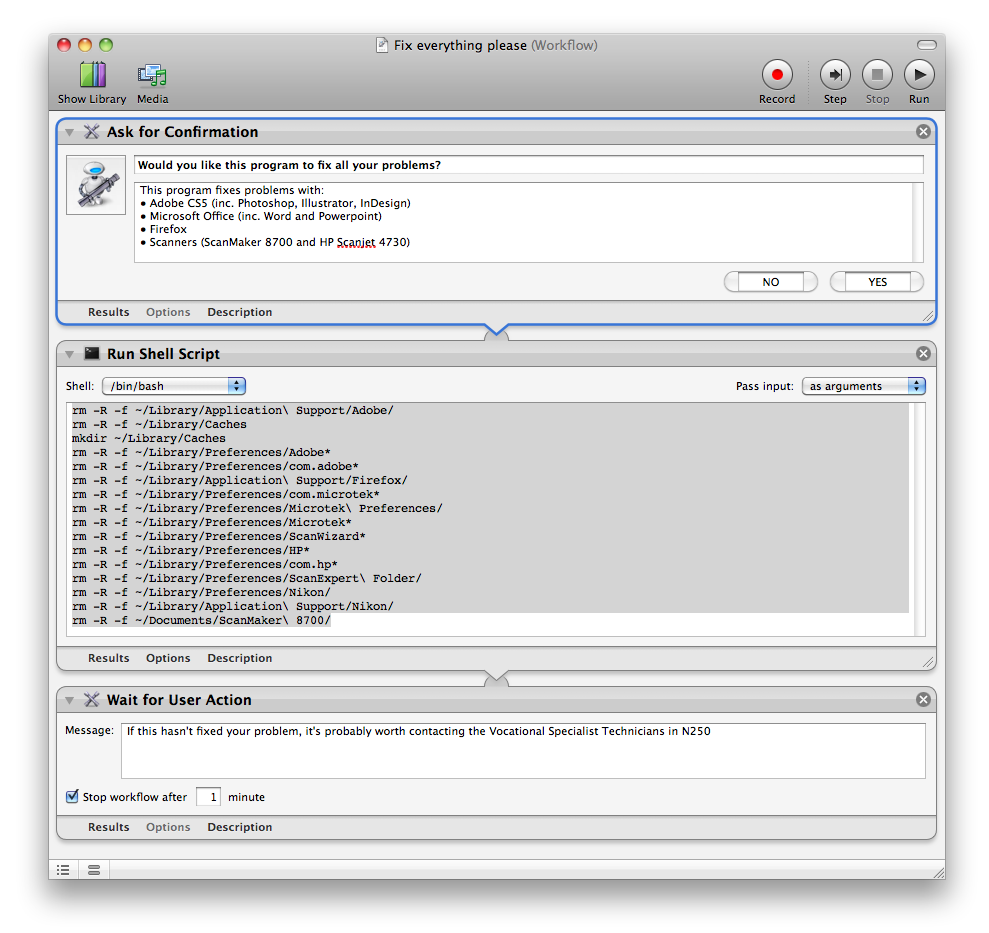
Making an Application which fixes all the little things

Fix Everything Please Application
A while ago I had the idea of making a little application which fixes any little problems we have in the college with the Apple Mac accounts. Part of the trouble is to do with the Active Directory accounts, but a lot of the trouble comes from Applications coming up with errors related to the preferences.

Basically, this program deletes preferences and folders to all the programs which cause the most problems.

I made the program in Automator, and it basically just runs a shell script with a lot of 'rm' for removing stuff. I originally tried using a lot of the options in the library to find certain files and put them in the trash. This doesn't work for different users though, as they have a different location for their home drive. So I ended up using the '~' option to specify the users home drive:

these three lines remove anything related to Adobe:

rm -R -f ~/Library/Application\ Support/Adobe/
rm -R -f ~/Library/Preferences/Adobe*
rm -R -f ~/Library/Preferences/com.adobe*

this removes the key Firefox preferences, which cause it to say "A copy of Firefox is already open"
rm -R -f ~/Library/Application\ Support/Firefox/

this removes any ScanWizard preferences
rm -R -f ~/Library/Preferences/com.microtek*
rm -R -f ~/Library/Preferences/Microtek\ Preferences/
rm -R -f ~/Library/Preferences/Microtek*
rm -R -f ~/Library/Preferences/ScanWizard*
rm -R -f ~/Documents/ScanMaker\ 8700/

this removes any HP Scanner preferences
rm -R -f ~/Library/Preferences/HP*
rm -R -f ~/Library/Preferences/com.hp*
rm -R -f ~/Library/Preferences/ScanExpert\ Folder/

This removes Nikon references for the Nikon browser
rm -R -f ~/Library/Preferences/Nikon/
rm -R -f ~/Library/Application\ Support/Nikon/

This removes the Network Home Relocation for the Caches folder and makes a new one

rm -R -f ~/Library/Caches
mkdir ~/Library/Caches

I added the -R so that it would force the removal, and the -f so it doesn't come up with an error if the file/folder doesn't exist.

Here's a screenshot of the workflow in Automator:

Automator workflow for "Fix Everything Please"
It proves very popular amongst the students and staff here, and I just add to the list when another program has this sort of problem. I just have to work out a quick way of deploying it to all the workstations, hopefully make a '.pkg' file and put it to the task server.