Showing posts with label application. Show all posts

Friday, 30 September 2011

Making a pkg file for installing sendLogon for Bloxx on OS X

In a previous post I described how we're getting a new web filtering system called Bloxx, which needs the sendLogon program to be installed and run as a login script on all the Apple Macs (OS X).

I used Iceberg free application to make the PKG file as I've used it before with relative ease, and also couldn't find the latest official Apple PKG maker app!!

Its all working now so here's how I did it:
  1. Made a new project in Iceburg, and made a nice little folder to hold all the files needed (makes it easier to find things)
  2. I filled in the top section "Settings"
  3. Next was the "Scripts" section. I had to make a script which changed the com.apple.loginwindow plist file to add the LoginHook /usr/bin/login.sh
    1. I ran nano from the command line (nano ~Desktop/sendLogonfiles/Install\ sendLogon/writeloginhook.sh)
       and typed:
    2.  #!/bin/tcsh
      sudo defaults write com.apple.loginwindow LoginHook /usr/bin/login.sh
    3. I found I had to put "sudo" into the script so that it had the right permissions to write to the file. Not sure why else it didn't work?
    4. I saved the file and made the file executable - chmod 755 ~Desktop/sendLogonfiles/Install\ sendLogon/writeloginhook.sh
  4. I then added this script to the "PostFlight" script, and set the path to "Relative". Note - I found an article here documenting the definition of each of these types of scripts. Most were concerned with whether this was an upgrade or not, and would only run once.
  5. Finally was the "Files" section. 
    1. I firstly put the files in the project folder.
    2. I set these files with the correct permissions (as in the tutorial folder for sendLogon). chmod 755
    3. Then, in Iceberg, I had to add the folders; /usr/ and /usr/bin/, which were not there.
    4. I then made the "Default Destination" the /usr/bin/ folder
    5. Finally I added the login.sh file and the sendLogon file.
I've just tested this through the Apple Remote Desktop Task Server on a single MacBook Pro and worked a charm (had to ring ICT though to add its' IP address to the Bloxx list of computers with sendLogon working)

Note: There is potential also for adding to this a little script which changes the proxy settings to the system and maybe also Firefox, but it would be easier to control these settings through a .pac file or .wpad file.

Monday, 26 September 2011

Office 2008 - Word file "is being used by another user" Error

One of the members of staff constantly gets the error message:

Some file is being used by "another user". Would you like to make a copy

It was quite a frustrating problem because you could open the Word .doc file in Pages, save it as another .doc file and then open it back up in Word. Of course the problem might pop up again with this new file.

It took about 25 mins to figure it out, thanks to the help of this forum. At the top I was reminded that there needs to be a ".TemporaryItems folder", in the folder which contains the Users home drives. I did this quite a few years ago.

Further down it also mentions Spotlight causing the issue. Simply make sure your Home Drive is in the "Privacy" section of Spotlight Preferences. Because I didn't want to log the user off, I also stopped the process as well called "Quick Look Helper". Worked a charm.


Of course I don't as yet know if you need to do this per user or per machine. I shall update this post when I find out.

In conclusion, I would also like to say that this is just a work around. You should not have to turn off Spotlight as it has a lot of good functions. I should think this is a problem with Microsoft Office 2008. I would also recommend Microsoft to make more accurate error messages. i.e. Your file is being used by another process. This process is: Spotlight. This would help solve problems a lot quicker and more efficiently.

Wednesday, 21 September 2011

Notify users when their disk space is running low

Well, after my last post about listing problems to fix and make my job that much easier, I thought I'd look up a script I had a while back which notified users when their disk space was running low. It really did save a lot of time and effort, as users would know exactly what the problem was: That their disk space was running LOW!

I couldn't make the script on my own back then (and still couldn't now) so I put up a "Help me" topic on the Apple Discussions and low and behold, someone came to help, amazing!

Here's the code, although you might have to read the discussion to get the right syntax as it didn't post quite right:

--****BEGIN SCRIPT
idle
on idle
set message_ to "Stephen! Don't trouble the technician, delete some files!"
set MinAllowFS to 20
try
set bootDiskInfo to do shell script "diskutil list | grep 'stephen'"
set bootDiskID to last word of bootDiskInfo
set FSinfo to do shell script "diskutil info " & bootDiskID & " | grep 'Free Space'"
set ActFS to word 3 of FSinfo

--Pick one or more of the following responses by removing the comment ("")

--if ActFS < MinAllowFS then beep 3

--if ActFS < MinAllowFS then display dialog message_

if ActFS < MinAllowFS then say "[[rate 180]]" & message_
end try
return 10 --<< Here's where you set the repeat rate in seconds
end idle
--
****END SCRIPT


The message wasn't quite what I had in mind. I wanted to inform the students that their disk space was running low and might cause some problems. They should take action by moving files off their home space, and emptying the trash. Something more along the lines of:

set message_ to "Your home space is running low, this may cause applications to crash and even corrupt you files. Please move some files off your home drive and don't forget to Empty the Trash."

The MinAllowFS is the threshold for the message to kick in, currently set to 20MB

As I wanted it to run for any networked user that was logged in, I ended up using the command "df -k -m" instead of "diskutil list". This lists all volumes mounted and the amount of space left in MB (-m). This df command is more useful then the 'diskutil' command as it gives us the free space straight away. The specific line from this list contains the word "students" so this line would read:

set bootDiskInfo to do shell script "df -k -m | grep 'students'"

Word 4 of this is the amount of disk space left, in MB

set ActFS to word 4 of bootDiskInfo

So the whole script should read:

--****BEGIN SCRIPT
idle
on idle
set message_ to "Your home space is running low, this may cause applications to crash and even corrupt you files. Please move some files off your home drive and don't forget to Empty the Trash."
set MinAllowFS to 20
try
set bootDiskInfo to do shell script "df -k -m | grep 'students'"
set ActFS to word 4 of bootDiskInfo

--Pick one or more of the following responses by removing the comment ("")

--if ActFS < MinAllowFS then beep 3

if ActFS < MinAllowFS then display dialog message_

--if ActFS < MinAllowFS then say [[rate 180]] & message_


end try
return 300 --<< Here's where you set the repeat rate in seconds
end idle
--
****END SCRIPT


------------------ 28/09/2013 ----------------
I've just came back to this post and finally got around to implementing it. I ended up with a problem having two lines of output from the df command, because two lines contain the word 'student'. To solve this, I had to use the grep -v option, which is the inverse of the grep command, finding the lines without it in. So trigger is on the line I don't want so the command I used was:

df -k -m | grep 'students' | grep -v 'trigger'


Script is now:


--****BEGIN SCRIPT
idleon idleset message_ to "Your home space is running low, this may cause applications to crash and even corrupt your files. Please move some files off your home drive and don't forget to Empty the Trash."
set MinAllowFS to 10
tryset bootDiskInfo to do shell script "df -k -m | grep 'students' | grep -v 'trigger'"
set ActFS to word 6 of bootDiskInfo
--Pick one or more of the following responses by removing the comment ("")
--if ActFS < MinAllowFS then beep 3
if ActFS < MinAllowFS then display dialog message_
--if ActFS < MinAllowFS then say [[rate 180]] & message_
end tryreturn 300 --<< Here's where you set the repeat rate in seconds
end idle

Now I have written a few programs, I'm getting the hang of writing them properly. A few things I would like to adjust are:

  1. verify (assert!) that ActFS is set to an appropriate number (not a letter or symbol)
  2. check if it is a member of staff and not a student and look for "staff" instead
  3. feed back to the user how much disk space there is free, total disk quota.
  4. give user the option of running a utility which will help identify larger files and folders
  5. contact administrator for help (either by remote desktop or email)

Tuesday, 20 September 2011

Fixing iPhoto '11 library on "unsupported Volume"

I make a little application to fix all the little problems we have a the college, and one of the new problems which has come up is this iPhoto not supporting library's on non - hfs+ journaled volumes. If you load iPhoto and it either; detects your iPhoto Library needs updating, or it wants to create a new library, it will check the type of volume it is saved on.

A work around for this problem I posted here, which involves moving or creating an iPhoto Library on a HFS+ Journaled volume, letting iPhoto update it if it needs it. Then closing iPhoto, move the library to the volume you want it, double clicking it to load it up in iPhoto.

iPhoto only checks the volume in these two circumstances and does not (at the moment) check any other time. So once a library is updated then you will be able to use it forever afterwards with no error.

I wanted to create an Application which did this process for you. The exact process would be:

  1. Ask the user whether or not to go ahead with the fix
  2. look for the location of the iPhoto Library, or whether there is one
  3. If there is one, move the current one to the Users/Shared folder
    1. open iPhoto with this one so that iPhoto can update it
    2. close iPhoto
    3. move library to ~/Library/Pictures/
  4. If there was not an old one, then copy a previously made one from secret place to ~/Library/Pictures/
  5. Open iPhoto with this iPhoto Library or set this library as the default.

Monday, 19 September 2011

Making an Application which fixes all the little things

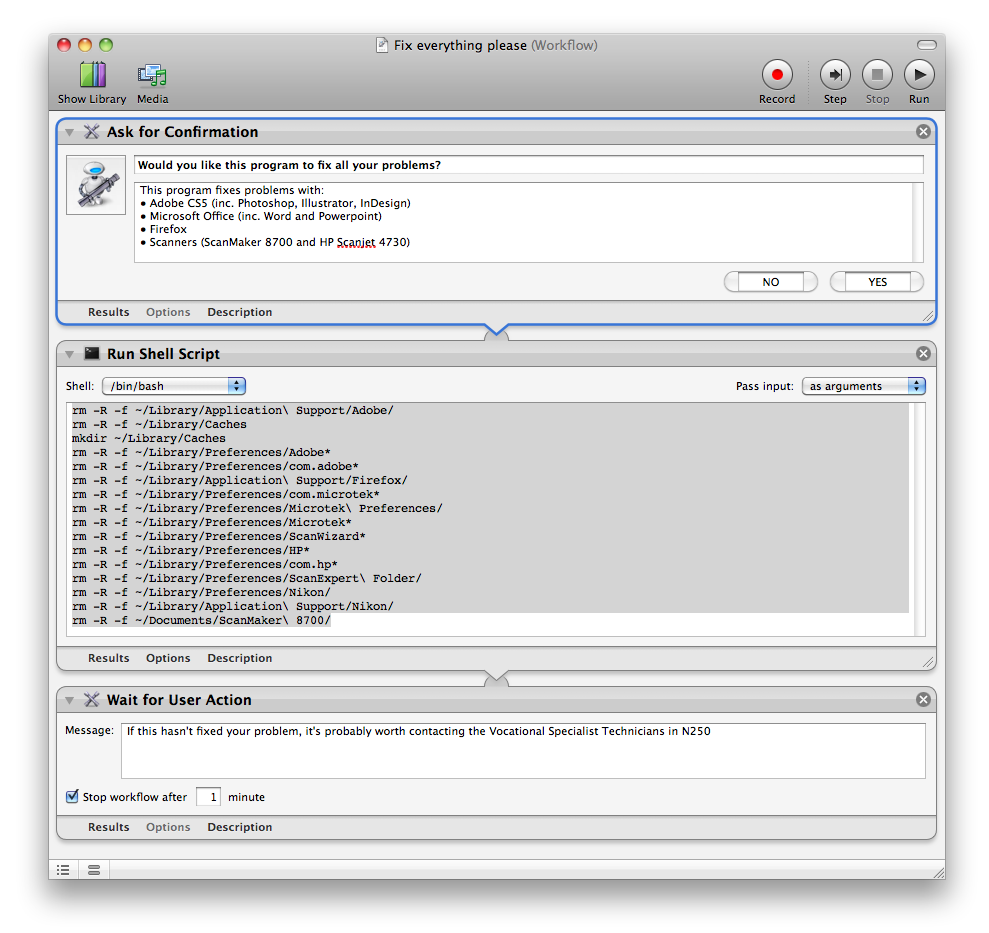
Fix Everything Please Application
A while ago I had the idea of making a little application which fixes any little problems we have in the college with the Apple Mac accounts. Part of the trouble is to do with the Active Directory accounts, but a lot of the trouble comes from Applications coming up with errors related to the preferences.

Basically, this program deletes preferences and folders to all the programs which cause the most problems.

I made the program in Automator, and it basically just runs a shell script with a lot of 'rm' for removing stuff. I originally tried using a lot of the options in the library to find certain files and put them in the trash. This doesn't work for different users though, as they have a different location for their home drive. So I ended up using the '~' option to specify the users home drive:

these three lines remove anything related to Adobe:

rm -R -f ~/Library/Application\ Support/Adobe/
rm -R -f ~/Library/Preferences/Adobe*
rm -R -f ~/Library/Preferences/com.adobe*

this removes the key Firefox preferences, which cause it to say "A copy of Firefox is already open"
rm -R -f ~/Library/Application\ Support/Firefox/

this removes any ScanWizard preferences
rm -R -f ~/Library/Preferences/com.microtek*
rm -R -f ~/Library/Preferences/Microtek\ Preferences/
rm -R -f ~/Library/Preferences/Microtek*
rm -R -f ~/Library/Preferences/ScanWizard*
rm -R -f ~/Documents/ScanMaker\ 8700/

this removes any HP Scanner preferences
rm -R -f ~/Library/Preferences/HP*
rm -R -f ~/Library/Preferences/com.hp*
rm -R -f ~/Library/Preferences/ScanExpert\ Folder/

This removes Nikon references for the Nikon browser
rm -R -f ~/Library/Preferences/Nikon/
rm -R -f ~/Library/Application\ Support/Nikon/

This removes the Network Home Relocation for the Caches folder and makes a new one

rm -R -f ~/Library/Caches
mkdir ~/Library/Caches

I added the -R so that it would force the removal, and the -f so it doesn't come up with an error if the file/folder doesn't exist.

Here's a screenshot of the workflow in Automator:

Automator workflow for "Fix Everything Please"
It proves very popular amongst the students and staff here, and I just add to the list when another program has this sort of problem. I just have to work out a quick way of deploying it to all the workstations, hopefully make a '.pkg' file and put it to the task server.