Showing posts with label itunes. Show all posts

Thursday, 7 March 2013

iPad 3 apple logo on black screen cycle

A friend brought his iPad round. It was constantly switching on, showing the apple logo on black background, going slightly grey for a split second and then switching off.

Holding down the power button did nothing.

Holding down the power button and front button put it in "Connect to iTunes" mode. If you leave it for more then a minute not connected to itunes it begins its' cycle again.

Connecting to iTunes asks if you want to reset to factory defaults. Clicked 'yes' and it's downloading the update as I type.

When it was updating/reseting the ipad it came up with error 1611. After looking into it I found this help page on Apples website describing possible reasons:

  1. Security software problem
  2. Hardware fault

I concluded that it was a hardware fault. Taking it back to apple store.

....

took it to Apple Store and was replaced - hardware failure

Friday, 7 September 2012

iPad backup and restore confusion

So, originally I made one ipad work perfectly, backed it up using iTunes and then restored all the ipads using this backup. Over time, more backups have been made of numorous ipads and confusion has sunk in. I'm using this post to document which iPad backup I'm currently restoring from. So, for now, I will use:

iPad 11848 backed up on 7th Sept 2012.

Tuesday, 28 August 2012

iTunes requires Quicktime 7.5.5 on OS X 10.5.8

After updating a G4 PowerBook to OS X 10.5.8, making sure all the software was up to date with "Software Updates" in the Apple Menu, I tried iTunes. It came up with the error message:
iTunes requires Quicktime 7.5.5

I had a quick look around and found this in Apple Discussions. It appears Software Update does not pick up on the quicktime update. If you go to  http://support.apple.com/downloads/#quicktime it gives you a list of quicktime downloads. The latest version at present which goes on OS X 10.5.8 is Quicktime 7.7

After downloading and installing it's working fine.

Wednesday, 15 February 2012

iTunes Apps folder on OS X

So, I've been downloading a few new apps for the iPads and have just been notified that I'm using too much disk space. So, looking into where the apps are stored I found this folder:

~Music/iTunes/iTunes\ Media/Mobile\ Applications

Thought I'd move this to the local drive and make a symlink:

ln -s /Volumes/Scratch\ Disk/Stephen/Mobile\ Applications /Network/Servers/appleton.chesterfield.ac.uk/home2\$/LeachS/Music/iTunes/iTunes\ Media

Yep, still works. So all is good.

Friday, 16 December 2011

Upgrading and imaging iPads (or any IOS device)

Thought I'd document the technique I use for managing the iPads in an Academic environment.

Using this technique you can backup an iPad and restore it to all your other iPads.


A point to note is that you cannot restore an IOS 5 "Backup" onto an IOS 4 iPad. You will need to manually update the iPad to IOS 5 first.


Right click (or CTRL click) on the IOS device on the list on the left


Create an image from a "Master" iPad (called "backup")

  1. Get your iPad exactly how you want it
  2. Plug it into iTunes
  3. Right click on the IOS device in the list on the left
  4. Click "Backup"
Restore an image onto IOS device
  1. Plug IOS device in to iTunes 
  2. Plug it into iTunes
  3. Right click on the IOS device in the list on the left
  4. Click "Restore from Backup"
If the IOS version is the same, it should list all the "Backups" or images that have been taken. Select the one you want.

Monday, 12 December 2011

Unable to download IOS 5 software update through iTunes

I'm in the process of updating the iPads to IOS 5, but I'm stuck at the first stumbling block. I need to download the iPad update file. Whenever I click the update button through iTunes it starts to download the file, but a few minutes later it says:

There was a problem downloading the software for the iPad. Then network connection timed out
I found the file location it was downloading it to is:

/Library/iTunes/iPad\ Software\ Updates/iPad1,1_5.0.1_9A405_Restore.ipsw

It downloads approx 100MB, but this varies and then comes up with the error message. After a bit of searching I found this website which gives you direct links to the ipsw update files, straight from what looks like the apple download server. I've also found this website as well

Download location is for the iPad 1st gen is:
iPad1,1_5.0.1_9A405_Restore.ipsw

Download location for the iPad 2 - Wifi is:
iPad2,1_5.0.1_9A405_Restore.ipsw

Interestingly, after attempting this with Safari it also failed. I'm guessing it has to do with the proxy server we're using. I shall try another.

Finally downloaded it through another computer connected to a different proxy. Worked fine. Final file was approx. 750MB.

Loaded up iTunes, "alt" clicked the "Update" button and selected the downloaded file. Worked fine.


Update:
We're now on 5.1.1. Heres the link to the IOS update:

iPad 1

iTunes iPad backup location

I've noticed my Library folder get immensely large. I looked into it with OmnDiskSweeper (now that WhatSize has decided to charge) and found nearly 800MB (not much nowadays but too much for this as far as ICT Services goes) was taken up with iPad backups:

/Library/Application\ Support/MobileSync/Backup

I thought the easiest solution was to move it to the local scratch disk and symbolically link it. Heres the exact command I used to create the symbolic link:


ln -s /Volumes/Scratch\ Disk/Stephen/Library/Application\ Support/MobileSync/Backup /Network/Servers/appleton.chesterfield.ac.uk/home2\$/LeachS/Library/Application\ Support/MobileSync 

Seems to have done the trick.

I also noticed another folder taking up a lot of disk space whenever I tried to do a software update for the iPads:

/Volumes/Scratch\ Disk/Stephen/Library/iTunes/iPad Software Updates/

I decided to move the whole /Library/iTunes folder across. Here's the command I used to create a symbolic link:

ln -s /Volumes/Scratch\ Disk/Stephen/Library/iTunes /Network/Servers/appleton.chesterfield.ac.uk/home2\$/LeachS/Library

Wednesday, 26 October 2011

iTunes not recognising IOS device when plugged in

Just got an iPad back from a member of staff and plugged it in to get rid of photos etc. I loaded up iTunes and waited to find it didn't pop up in the list! So I tried my iPhone and the same thing happened. I loaded iPhone Configuration Utility as well to find the iPad did not pop up in that list as well!

One thing I did note was that I had just updated iTunes to version 10.5 about 10 minutes earlier. I did a lot of searching and found quite a few people with this problem. This forum in particular had a lot of posts which might have been of interest. It had a link to this help page which was quite informative.

Before undertaking any fixes I had seen it mentioned that a restart might just fix it so I restarted (with the iPad plugged in) and seems to work fine now. So after all this fiddling, just switching the computer off and back on again does it! Old Skool!

But none the less, I thought it prudent to note this down, and store the help page and forum here.

Wednesday, 28 September 2011

New Web Filter - Bloxx and sendLogon deployment on OS X

So we've now got a new web filtering system which needs testing on the Macs and then deploying. The new system is currently running alongside the old, the later of which will slowly be phased out.

The new system does come with one small bonus for the Apple Macs as it works alongside a program called "sendLogon" which sends the credentials of the user to the server and automatically authenticating them to use the internet. This sendLogon was downloaded here, and comes with instructions:


Running sendLogon automatically on Mac OSX
You need to take the following steps:

1) Download the Send Logon program from http://www.bloxx.com/downloads/sendLogon_osx_10.4.universal.tar.gz to the desktop.
2) Browse to ‘Applications->Utilities’ and run the ‘Terminal’ application.
3) Type ‘cd ~/Desktop’.
4) Type 'tar zxvf sendLogon_osx_10.4.universal.tar.gz'.
5) Type ‘sudo cp sendLogon /usr/bin’ and enter your password when prompted.
6) Type ‘sudo nano /usr/bin/login.sh’.
7) Enter the following lines:

#!/bin/tcsh

/usr/bin/sendLogon 3898 $1

8) When finished, press ctrl-o followed by return, to save the file.
9) Press ctrl-x to exit.
10) Run the following commands to set the correct permissions on the utility and login script:

sudo chmod 755 /usr/bin/login.sh
sudo chmod 755 /usr/bin/sendLogon

11) Run the following command:

sudo defaults write com.apple.loginwindow LoginHook /usr/bin/login.sh

The sendLogon utility should now run for every user that logs on.
This all worked splendidly. Our server address is XXX.XXX.XXX.21. The proxy settings are XXX.XXX.XXX.23 port 8080 though. Just need to remember that the computer has to be in the list of this filter system as using the sendLogon program (took me 20 mins before I remembered this!).

To deploy this the idea is to create a pkg file which copies the two files login.sh and sendLogon to /usr/bin and also sends the command for the LoginHook.

Note that all the Macs I will run this on do not have any login scripts which run from the computer and hence it doesn't matter if you overwrite the login.sh file. For those who do have login scripts then they will need to append to this file, which isn't too hard.

I will use the Iceberg App to create the pkg file and run it through the task server to deploy to all computer suites and staff machines.

We did have a choice whether to control the LoginHook from the Xserver or just have the clients controled locally. We chose the later as ICT Services do not control the Xserver, which is just used for the one Directorate.

I shall note in a later post how I created the pkg file.

Tuesday, 6 September 2011

Transferring pictures on an iPad and any iOS device

Well, it is funny how user friendly the iPad is, and yet how puzzling it can be to do simple tasks. One such task is to transfer pictures onto an iPad. One would think it quite simple, perhaps drag and drop, bluetooth, through iPhoto; but alas these are not the way to do it.

Amazingly I had to look this up on the internet and found quite a few blogs, this one being helpful. Basically you need to sync either a folder or album to the iPad, which is controlled through iTunes.
  1. Load up iTunes and plug in iPad (or iOS device)
  2. Click on the device on the left hand side of iTunes
  3. Click on the Pictures tab
  4. Tick the sync box and select "folder" or whatever is relevant to you
Simple but not the way I would have done it.

Wednesday, 2 March 2011

Squid proxy server setup for iTunes authentication through another proxy

Yay, nice new shinny iPads. What could possibly go wrong. Doh! iTunes doesn't like the proxy server.

After speaking with the Network administrator, he showed me a mac already in use with ipod touches. The set-up on this machine uses a deamon called "Squid", which acts as a local proxy server. So this authenitcates itself with the real proxy server, and all programs on the machine communicate with squid as a localhost, so everything works just fine. It starts at startup,but I think it should start at login.

Here's the config files, squid.conf:


# ----------------------------------------------------------------------
# WARNING - do not edit this template unless you know what you are doing
# ----------------------------------------------------------------------

# the parent cache
cache_peer xxx.xxx.1.3 parent 8080 7 no-query no-digest no-netdb-exchange default login=username:password

# disk and memory cache settings

acl everything src all
cache deny everything
maximum_object_size 4096 KB

# store coredumps in the first cache dir
coredump_dir /usr/local/squid/var/logs

# the hostname squid displays in error messages
visible_hostname localhost

# log & process ID file details
cache_access_log /usr/local/squid/var/logs/squid-access.log
cache_log /usr/local/squid/var/logs/squid-cache.log
cache_store_log /usr/local/squid/var/logs/squid-store
pid_filename /tmp/squid.pid

# Squid listening port
http_port 8080

# Access Control lists
acl localhost src 127.0.0.1/32
acl to_localhost dst 127.0.0.0/8 0.0.0.0/32
acl manager proto cache_object
acl SSL_ports port 443
acl Safe_ports port 80 # http
acl Safe_ports port 21 # ftp
acl Safe_ports port 443 # https
acl Safe_ports port 70 # gopher
acl Safe_ports port 210 # wais
acl Safe_ports port 1025-65535 # unregistered ports
acl Safe_ports port 280 # http-mgmt
acl Safe_ports port 488 # gss-http
acl Safe_ports port 591 # filemaker
acl Safe_ports port 777 # multiling http
acl CONNECT method CONNECT
acl allowed src 127.0.0.1

acl godirect dstdomain .somewhere.co.uk

# Only allow cachemgr access from localhost
http_access allow manager localhost
http_access deny manager

# Deny requests to certain unsafe ports
http_access deny !Safe_ports

# Deny CONNECT to other than secure SSL ports
http_access deny CONNECT !SSL_ports

# protect web apps running on the proxy host from external users
http_access deny to_localhost

# rules for client access go here
http_access allow localhost
http_access allow allowed

# after allowed hosts, deny all other access to this proxy
# don't list any other access settings below this point
http_access deny all

# specify which hosts have direct access (bypassing the parent proxy)
always_direct allow godirect
always_direct deny all

# hierarchy stop list (squid-recommended)
hierarchy_stoplist cgi-bin ?

# refresh patterns (squid-recommended)
refresh_pattern ^ftp: 1440 20% 10080
refresh_pattern ^gopher: 1440 0% 1440
refresh_pattern -i (/cgi-bin/|\?) 0 0% 0
refresh_pattern . 0 20% 4320

always_direct deny all
never_direct allow all

To get this running there is some things to run, there might be a GUI. But thinking about it, the machine was running 10.6, and I'm running 10.5, doh! I'll have to check out if it works on this first.

So, it doesn't come with 10.5. Downloaded latest version and found this website. Didn't work. You need a compiler which doesn't come on the mac, doh! Tried installing GCC compiler, which doesn't work either! Doh!

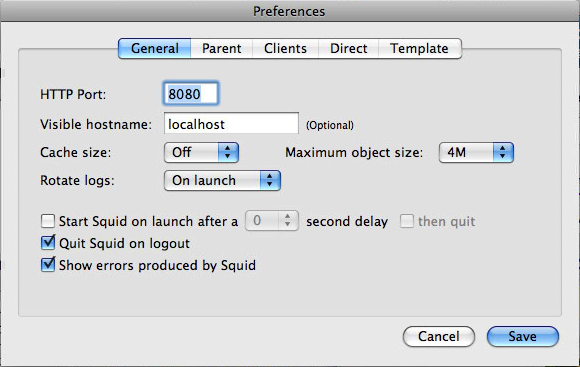
So I searched for a GUI for Squid and found SquidMan. Works very nicely, with no messing about with compiling, yay. Had a little trouble getting it to work. What is also good is that you can manipulate the config file it uses! So I copied and pasted from above, but errors came up about permission to write to log files. I left the log files section alone and pasted the rest but it came up with permission denied.

In the end, I just used the default settings, under General I put HTTP port to 8080, Visible hostame to localhost.


Under parent I put "Use a parent proxy server", hostname proxy.chesterfield.ac.uk port 8080, and ticked "Parent requires authentication. But putting username and password here doesn't seem to work. Leaving them blank asks you for a username and password when the service starts and works without putting domains in. Yay!