Showing posts with label mac. Show all posts

Monday, 1 December 2014

OS X installing Profiles .mobileconfig files through ARD command line

I've not quite got OS X server running pushing changes to macs yet, so in the mean time I have to change a profile through the web service, download it and install it on the machines I want to update.

I found this article which helped doing it through command line:

/usr/bin/profiles -I -F "/Library/MyOrganization/Company Wi-Fi.mobileconfig"
 
I first copied the file to "Users/Shared" then ran this script. To improve it, I could make a pkg file which ran a script to install the file. That is the next step

Wednesday, 26 February 2014

OS X Mavericks AD failed to login because an error occurred

After updating to Mavericks 10.9.1 I seem to be having problems logging in under active directory.

Found this post which describes similar issues.

Seems my problem is now fixed. Not sure what caused it or fixed it though.

Friday, 17 January 2014

installing MFD canon IR 5840 and 4080 printers using only one queue

So we have a print management system, and Canon Multi Function devices installed everywhere. When we send a print, it goes to only one queue, and will print on whatever MFD you log on to. TRouble is there are multiple models, i.e.

Canon IR C4080
Canon iR C4580
Canon 5840

When we send a print to the 4080 using the 4080 PCL drivers from a Mac, it prints fine. If we send them to the 5840 it prints gobble-de-goop.

So now I'm testing the 5840 drivers on both to see what happens. I'm not sure which to try, the PS drivers or the UFR II (whatever that means) drivers.

Trying the Mac CUPS UFRII/UFRII LT Printer Driver (v10.2.1)  driver:
4080 - blank A3 page

Canon PS Printer Driver for MacOSX v4.00 (v4.00)  driver:
4080 - blank A3 page

Thursday, 1 August 2013

Re-imaging Windows 7 on Apple Macs

So, we are now trialing a newer system for deploying Windows 7 on to our Apple Macs. Previously we've used Deploystudio, but as our Apple Server is too old, it is no longer up to the task.

For the rest of the PC's we use the Microsoft Imaging technique (whatever this is), and we're trying it with our macs.

Here's a step by step of what to do with the installer disk:

  1. insert disk
  2. set the default boot disk to be Windows (assuming Windows was previously installed)
  3. reboot and hold ALT
  4. select the CD
  5. Press ANY KEY
  6. log in with own credentials
  7. Select task sequence
    1. to determine which volume to boot from you need to run DISKPART. Type:
      1. SELECT DISK 0
      2. LIST VOLUMES
      3. SELECT VOLUME (type the volume number)
      4. LIST PARTITIONS
  8. Select to install BootCamp drivers
  9. Put name, domain details in
  10. Go!

Friday, 19 July 2013

Getting Mac Model Identifiers using Command Line and ARD

I remember a few years ago ARD used to tell me the Mac Model Indentifier e.g. iMac12 ,2

Apparently not any more. I found this forum where they've found a command line argument which prints it:

system_profiler SPHardwareDataType | grep "Model Identifier" | awk '{ print $3; }'

This worked, although the machines needed to be switched on to find it. I wonder why Apple never kept this feature in ARD?

Friday, 21 September 2012

Powerpoint 2011 for Mac beeping with Ink Aware toolbar popping up

After just imaging a new computer suite with OS X 10.7.4 everything was going fine. That is until they tried to use Powerpoint 2011 for Mac. Every now and then the computer would pop up with "Ink Aware Toolbar" and constantly beep.

The only workaround for the time was to use Keynote which didn't have this problem.

After searching on the internet I found a few references to the problem and also and how to fix it. I first found this article describing how to turn this "ink aware" tool off. Seems it is related to SMART products, of which we have some Interactive Smartboards so the SMART software is installed, but not attached to these computers, so in theory it shouldn't run.

I also found this forum which describes the same problem with a solution much like the one previous.

Finally I looked into what Ink Aware was and found this official tutorial on how to remove it:
  1. Press the SMART Board icon in the notification area, and then select Control Panel.
    Note 
    If your computer isn’t currently connected to an interactive product, the SMART Board icon includes an X in its lower-right corner .
  2. Press Configure SMART Tools.
  3. Press Ink Aware Program Settings.
    The Aware window appears.
    • If a check mark appears in the Aware Enabled column, the program is currently Ink Aware.
    • If the program is currently open, Running appears in the Status column.
  4. Do one of the following:
    • To disable Ink Aware for a program, clear the check box in the Aware Enabled column.
    • To disable Ink Aware for all software programs, press Clear All.
  5. Press OK.
    Note 
    To enable Ink Aware for all programs, open the Aware dialog box, and then press Select All.

Thursday, 17 May 2012

Safari Crashing on OS X 10.6.8 for Active Directory Users

It appears on the machines where they were 'accidentally' updated to OS X 10.6.8 (we currently run OS X 10.6.6), Active Directory users cannot run Safari as it crashes on launch. For local users Safari works fine. I have deleted the ~/Library/Safari/ folder and also the ~/Library/Preferences/com.apple.safari* files.

My initial conclusion is that Safari doesn't like the permissions on certain folders in the ~/Library folder. e.g. Caches folder. I am used to this issue hence the installation of the useful program "NHR" (Network Home Redirection"), which currently redirects the ~/Library/Caches folder to a local location. I shall look into pinning down which folder needs redirecting. I have found this post which suggests ~/Library/Safari/WebpageIcons.db causes crashes. I shall continue to add to this post.

Wednesday, 14 March 2012

MatchMover 2012 OS X A valid license could not be obtained

Just got the free student version of Maya 2012 which comes with MatchMover 2012! Yay.


Maya is working fine, but MatchMover comes up with:


A valid license could not be obtained by the network license manager - error -1.359.2 (????)
License was not obtained - tried maya 2012 (657D1 2012.0.0.f), error 20
License method : environment variable Maya_License_method=’network’
Product choice : environment variable Maya_License=’unlimited’
License file override : environment variable Maya_alt_en is not set
This is the maya 2012 license.env
MAYA_LICENSE=Unlimited
MAYA_LICENSE_METHOD=Standalone
This is the adlminfo from matchmover…
type=Standalone
serial=xxxxxxxxxxxxx
prodkey=657D1
configuration=Unlimited

Just had a quick search and found this forum. Just a quicky really. Just have to copy the license.env from:
/Applications/Autodesk/Maya 2012/Maya.app/Contents/license.env
to:
/Applications/Autodesk/MatchMover2012/MatchMover2012.app/Contents/license.env

Works a charm. Must just be a bug with the Mac OS X version

Thursday, 7 July 2011

Setting up the new 27" iMacs

Setup started with the simple "hold down the n button" to netboot/netinstall. The first problem was that the current netinstall image would not work on the new iMacs, doh! So I set about making a new one. The old deploy studio RC20 seems to crash whilst making an image, so I needed to use a newer one. This newer one imaged without crashing, but when netbooting came up with a message saying the server needed updating to cope with the new netboot image.

The next thing I tried was to put an iMac in target disk mode and just reimage it using a 24" imac with I know works. I put the Mac Pro 10.6.6 image on it but would not boot up. This was probably due to new drivers not being on the image!

My last attempt is to start from scratch (or nearly from scratch) and install everything. I updated the operating system to the latest 10.6.8. I took a shortcut though and used "Migration Assistant" to pull across applications from the 10.6.6 image. This worked and only required me to install the newest of things. Heres a list of things which is now on the new iMac:

  • Adobe CS5
  • Final Cut Studio
  • Firefox 4
  • Acrobat 9 Pro
  • Papercut client
  • Celtx
  • Office 2008 (required rosetta)
  • Handbrake
And drivers
  • Scanwizard
  • Dell 3110 driver
  • Pixma Driver
  • Konica Driver
  • HP Scanner 4370
  • Wacom tablet
  • Flip4Mac
After all this I tried a students account. It required 2 login attempts to get me in though. I then tried all the apps. The problems I encountered were:
  • Photoshop crash on launch
  • Illustrator crash on launch
  • Indesign crash on launch
  • Acrobat crash on launch
These were probably due to NHR (network home relocation) script not installed. I installed it and Photoshop and Acrobat started working. Unfortunately Illustrator nor InDesign would work! They worked perfectly fine on a local login. I ran the CS5 install again, and also updated Illustrator to 15.0.2 and InDesign to 7.0.4. Illustrator would crash on load up, and indesign would crash on the "new document" screen which comes up first. My only clue was a message which popped up in console which I can't quite remember now. Something to do with transport2app error 255.

Just relogged in and tried it again. The error's I'm getting from the console are:

07/07/2011 14:01:43 kernel smbfs_vnop_link: warning: pid 665(Adobe Illustrato) hardlink(~v3vZO_cBdNvr4jqB)
07/07/2011 14:01:49 mdworker32[673] kCGErrorFailure: Set a breakpoint @ CGErrorBreakpoint() to catch errors as they are logged.
07/07/2011 14:01:51 mdworker[658] CFPropertyListCreateFromXMLData(): Old-style plist parser: missing semicolon in dictionary.

The first refers to the smbfs (samba file system) which must be the home drive of the student which is hosted on a windows share.

The only real difference is that the operating system in 10.6.8 instead of 10.6.6. I think I will have to redo this on a 10.6.6 machine....

So, redone a 10.6.6 version and migrated everything from 10.6.8 iMac. Everything worked! (apart from Adobe Acrobat and Dreamweaver. Acrobat crashes and dreamweaver gets stuck even loading up. I installed NHR and still the same. Interestingly Illustrator worked without NHR!

Looking into the issue a little more, I found that NHR is not entirely working. I've noticed that the caches folder is not being relocated, although the fonts folder is? I will have to look into this further. At the time I thought this was due to the test account having the links set up already from another machine, but thinking about it now these links should be deleted on logout! So now I'm thinking about it, it was originally working and now somehow it is not working any longer.


Tuesday, 15 March 2011

Adding local users to OS X via Command Line - Apple Remote Desktop

Media wanted all apple macs to have a "Media" login, and show a list of users for the login window. As I'd done this before I thought it'd be pretty straight forward. I found the script I used to do an apple event previously:


dscl / -create /Users/apple
dscl / -create /Users/apple UserShell /bin/bash
dscl / -create /Users/apple RealName "Apple"
dscl / -create /Users/apple UniqueID 505
dscl / -create /Users/apple PrimaryGroupID 1000
dscl / -create /Users/apple NFSHomeDirectory /Users/apple
dscl / -passwd /Users/apple "apassword"

Unfortunatley it came up with an error:

Data source (/) is not valid

I figured last time I used the command it was on OS X 10.4.11, and we're now on OS X 10.5.8. I searched on the old internet and found this post, which might have been where I originally got the commands. I also found someone else having the same error. There was a few solutions, but by far the easiest was simply replacing the '/' with a '.'  . i.e.


dscl . -create /Users/media
dscl . -create /Users/media UserShell /bin/bash
dscl . -create /Users/media RealName "Media"
dscl . -create /Users/media UniqueID 505
dscl . -create /Users/media PrimaryGroupID 1000
dscl . -create /Users/media NFSHomeDirectory /Users/media
dscl . -passwd /Users/media "adifferentpassword"

The only problem I had after this (if you can call it a problem) was getting it to use a different picture. The one it seems to set is a networked picture. I did a little searching but found nothing. I'm sure the 'dscl' command could probably do it, but it seems to have a large man page on it, doh! If I get more time (unlikely) then you can get the dscl command to read the settings for a user already set up.

To set up the login screen I simply used the settings in Workgroup Managers computer management settings for "Login". Simple.

Anyway. this has definitely saved me a little time in the future!!

Wednesday, 2 March 2011

Squid proxy server setup for iTunes authentication through another proxy

Yay, nice new shinny iPads. What could possibly go wrong. Doh! iTunes doesn't like the proxy server.

After speaking with the Network administrator, he showed me a mac already in use with ipod touches. The set-up on this machine uses a deamon called "Squid", which acts as a local proxy server. So this authenitcates itself with the real proxy server, and all programs on the machine communicate with squid as a localhost, so everything works just fine. It starts at startup,but I think it should start at login.

Here's the config files, squid.conf:


# ----------------------------------------------------------------------
# WARNING - do not edit this template unless you know what you are doing
# ----------------------------------------------------------------------

# the parent cache
cache_peer xxx.xxx.1.3 parent 8080 7 no-query no-digest no-netdb-exchange default login=username:password

# disk and memory cache settings

acl everything src all
cache deny everything
maximum_object_size 4096 KB

# store coredumps in the first cache dir
coredump_dir /usr/local/squid/var/logs

# the hostname squid displays in error messages
visible_hostname localhost

# log & process ID file details
cache_access_log /usr/local/squid/var/logs/squid-access.log
cache_log /usr/local/squid/var/logs/squid-cache.log
cache_store_log /usr/local/squid/var/logs/squid-store
pid_filename /tmp/squid.pid

# Squid listening port
http_port 8080

# Access Control lists
acl localhost src 127.0.0.1/32
acl to_localhost dst 127.0.0.0/8 0.0.0.0/32
acl manager proto cache_object
acl SSL_ports port 443
acl Safe_ports port 80 # http
acl Safe_ports port 21 # ftp
acl Safe_ports port 443 # https
acl Safe_ports port 70 # gopher
acl Safe_ports port 210 # wais
acl Safe_ports port 1025-65535 # unregistered ports
acl Safe_ports port 280 # http-mgmt
acl Safe_ports port 488 # gss-http
acl Safe_ports port 591 # filemaker
acl Safe_ports port 777 # multiling http
acl CONNECT method CONNECT
acl allowed src 127.0.0.1

acl godirect dstdomain .somewhere.co.uk

# Only allow cachemgr access from localhost
http_access allow manager localhost
http_access deny manager

# Deny requests to certain unsafe ports
http_access deny !Safe_ports

# Deny CONNECT to other than secure SSL ports
http_access deny CONNECT !SSL_ports

# protect web apps running on the proxy host from external users
http_access deny to_localhost

# rules for client access go here
http_access allow localhost
http_access allow allowed

# after allowed hosts, deny all other access to this proxy
# don't list any other access settings below this point
http_access deny all

# specify which hosts have direct access (bypassing the parent proxy)
always_direct allow godirect
always_direct deny all

# hierarchy stop list (squid-recommended)
hierarchy_stoplist cgi-bin ?

# refresh patterns (squid-recommended)
refresh_pattern ^ftp: 1440 20% 10080
refresh_pattern ^gopher: 1440 0% 1440
refresh_pattern -i (/cgi-bin/|\?) 0 0% 0
refresh_pattern . 0 20% 4320

always_direct deny all
never_direct allow all

To get this running there is some things to run, there might be a GUI. But thinking about it, the machine was running 10.6, and I'm running 10.5, doh! I'll have to check out if it works on this first.

So, it doesn't come with 10.5. Downloaded latest version and found this website. Didn't work. You need a compiler which doesn't come on the mac, doh! Tried installing GCC compiler, which doesn't work either! Doh!

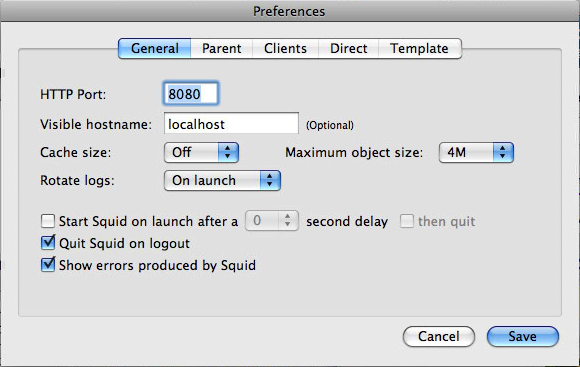
So I searched for a GUI for Squid and found SquidMan. Works very nicely, with no messing about with compiling, yay. Had a little trouble getting it to work. What is also good is that you can manipulate the config file it uses! So I copied and pasted from above, but errors came up about permission to write to log files. I left the log files section alone and pasted the rest but it came up with permission denied.

In the end, I just used the default settings, under General I put HTTP port to 8080, Visible hostame to localhost.


Under parent I put "Use a parent proxy server", hostname proxy.chesterfield.ac.uk port 8080, and ticked "Parent requires authentication. But putting username and password here doesn't seem to work. Leaving them blank asks you for a username and password when the service starts and works without putting domains in. Yay!


Friday, 18 February 2011

OS X change printer settings

So a printer IP address changed, and I print directly to it, so how do you change the IP address of a printer already in your printer list in OS X 10.5?

Well, I found this post which basically says you can change the /etc/cups/printers.conf file. This isn't too easy as first you need to change file permissions. I opened in textedit and changed the IP address only to find this did not change the settings, presumably some service needs rebooting. Looks like it works off the "printers.conf.0" file. So I eventually gave up and just re-added the printer!

Thursday, 10 February 2011

iMac 21.5" - 11, 2 - 10.6.6 - Installation and deployment - Part 2

After NetInstalling OS X 10.5.8 on the new iMac I got a black screen. I still think it was worth a try.

So, I swapped the "fully updated" one for another new iMac so I could start at OS X 10.6.4. Tried Active Directory and it worked fine, as well as NHR login scripts. So I jumped to the conclusion that it was in the use of "Migration Assistant" that some 'damage' occurred. But, I was still cautious of updating the operating system any further. My plan is/was to update everything else, image it, then update the operating system to see if everything still works and carry on accordingly.

So, I had to start from scratch and installed:
  • Final Cut Studio 2 - had to install at least 3 times to get 'all' the files
  • Aperture
  • Adobe CS5
  • Adobe Acrobat Pro 9 - no serial number
  • CeltX
  • Audacity
  • iWork 09
  • Burn
  • ClickView
  • DivX
  • Firefox 3.6.13
  • Handbrake
  • Office 2008
  • Mplayer Ex...
  • DeployStudio RC20
  • NHRBasic
  • Flip4Mac
  • ARD Client 3.4
  • PCclient
  • Don't have "Logic" Disks on server
  • VLC 1.1.7

Scanners:
  • HP Scanjet 4370
  • Nikon CoolScan 8000
  • Scanwizard Pro 7.20

Printers:
  • 5550
  • 3110
  • Canon Pixma IP4500
  • Konica 7300

Tablets:
  • PenTablet 521-3 - I think this covers all the tablets we have.
Forgot also to add "Media" user to the local users.

I partitioned the HD via Boot Camp Assistant and formatted it as HFS+ Journaled, named "Scratch Disk". Just going to make the first image now.....

.... and now just updated to 10.6.6, and student login worked just fine! So to conclude, "Migration Assistant" probably isn't good for transferring apps across operating system versions.

I am now imaging using Deploy Studio, but having to clear a bit of space on the server so it can fit on. The space taken on the iMac is 85GB, it needed more then 130GB (not sure how much more) for doing server side compression, I've now freed up 200GB on the server. 78 mins till it's uploaded, but then it'll take the old server, bless the poor thing, quite a while to compress the image.

... I left it over night and it did it. A nice thing to note is that if you use a local repository, I think it doesn't use the server to compress the image.

Worked a charm, and even worked with multicasting, yay.

Tuesday, 8 February 2011

iMac 21.5" - 11, 2 - 10.6.6 - Installation and deployment

Just received 10 new 21.5" iMacs, version "11, 2" ,  with 10.6.6 installed. Very nice, with quad core and 1GB Hard Drives, but having a few different issues has caused me to put them back to 10.5.8 temporarily until the main issues are fixed.

To streamline the operation I decided rather then starting from scratch, I would use Migration Assistant to transfer accounts and applications from the latest MacBook Pro which had everything on. This worked very well, but in heinsight might have caused the issues below. These problems need testing on a fresh install of OS X 10.6.6.

Issues which I encountered:

  • Students on Active Directory require to put details in more then once before they can login, for machines only just switched on!! I think this is to do with how quick the mac boots up, too quick to authenticate itself on active directory?
  • NHR (Network Home Redirector) scripts not running at login or logout.
  • Deploy Studio netboot not working; firstly freezing on the white screen with the grey apple (no spinning wheel, and secondly crashing and rebooting when loading the next screen after the one just mentioned.
With the students active directory issue (not properly tested on staff accounts), there was not much to try as I think it is more of a problem with Active Directory Servers or how OS X 10.6.6 communicates with them, which is too time consuming at present (there is pressure to deploy iMacs within the next 2 days at most). I did some simply exploratory fixes:
  1. take off of active directory and put it back on
  2. make sure everything was up-to-date
  3. refer back to solution 1.
When there is more time I shall need to look into this, but also future releases of the operating system will fix these. One thing I would like to do is try active directory logins on a fresh install of the operating system

With NHR I downloaded the latest, 3.2.6, uninstalled and reinstalled. What might have caused the problems is that I transferred files from a MacBook Pro running 10.5.8, which might have transferred some of NHR Scripts but not all. I also tried the full version which creates more alias's. Unfortunately not much info on NHR website, no-one else seems to be having problems. One thing I would like to do is try the scripts on a fresh copy of 10.6.6.

After these two problems and diminishing time I decided it was best to revert to 10.5.8 until time would allow these problems to be resolved. But, I did not want my efforts to go to waste, so I decided to make a disk image of the machine with its' problems so I can continue later. Little was I to suspect any more issues. I held down 'N' for netboot to DeployStudio and the machine froze on the white screen with the grey apple (no spinning wheel). Doh! The problem was probably because the last deploy studio netboot image was made on a MacBook Pro 15" now 2 years old.

I subsequently made a new netboot image (nbi) from this iMac and tried again, this time to get the spinning wheel but to crash on trying to load the next screen! This was probably due to outdated DeployStudio (currently using RC14 on the server and RC 15 on clients). I updated the client to the latest and the same happened again! So I updated the server, but alas, the installer said the minimum requirements were not met!! Server is running 10.4.11!!! Needs updating!!! So I go traipsing around for the last version to support 10.4.11 server, which was a lot of hassle. I'd like to not that the DeployStudio website (both Wiki and main site) are not good for troubleshooting, with only the latest versions available. I finally found RC20 here. Eventually worked! Yay.

After this I went to make an image of the drive but alas, not enough room on the server. So I used Boot Camp Assistant in OS X 10.6.6, and partitioned the drive - 160GB for OS X and the rest for "Scratch Disk". I then NetBooted again and used Disk Utility to make a compressed Disk Image and put it on the Scratch. Turned out to be 79GB, original was 106GB.

So now to put OS X 10.5.8 on, which will hopefully work on this machine!!

Thursday, 3 February 2011

MacBook Pro 17" fsck error EXITED WITH SIGNAL 8

Rob brought in his 17" MacBook which wouldn't get past the white screen with a gray apple and spinning dotty thing. I tried resetting the PR RAM. Next I tried single user mode with /sbin/fsck -yf. Results as shown:
Rebuilding B-Tree
could not repair volume
/dev/rdisk1s2 (hfs) EXITED WITH SIGNAL 8

Looked this up and found quite a few people with MacBook Pro's having the same error, looked to be related just with the file system and probably not a hard drive fault (hopefully). As Rob needed stuff off the HD I found only one command which might fix it, found it here:

  1. Boot off the OS X CD (reboot, hold C while booting).
  2. The installer will load up, go to Utilities in the menu and run Terminal.
  3. Type df and look for the drive that has your Mac system mounted---you'll have to unmount this. On my MacBook Pro, it was /dev/disk0s2.
  4. Type umount /dev/disk0s2, replacing disk0s2 with whatever disk your OS lives on.
  5. Type fsck_hfs -r /dev/disk0s2. If you umounted the wrong thing, it will complain that you can't repair a mounted drive. Go back and umount the right thing and repeat this step.
I found netbooting to a deploy studio image had the same results as using the install disk. Coinsidence or not it, it was disk0s2 that was the OS X partition.

Anyway, it came up with another error, saying volume could not be repaired. I put it in target disk mode and mounted it on another MacBook Pro. It came up saying that there are serious issues with the volume which cannot be repaired, it is only being mounted to retrieve files which should be backed up immediately.

I used Migration Assistant to get the user account across, and copied other erroneous files. I re-partitioned and re-imaged the macbook pro and all is well.


Wednesday, 19 January 2011

Adobe Acrobat OS X Active Directory Crash

So after fixing Adobe Acrobat admin password problem acrobat 8 loads up, but crashes after 20 seconds. I remember fixing this exact problem with Marketings' computer, Louise Webster I think.

Doh! I didn't write the solution in the blog!!! Lesson learned over and over again. So here's the brief explination I told Paul Jenkins by email:


Hi Paul,
I went over at 12 today to have a look. It appears to have problems on any active directory accounts which aren’t administrators. Its a permissions issue because acrobat (and lots of other programs) write temp files to the users home drive with the wrong permissions. The NHR program was installed but only redirects caches and fonts folders to the local drive, but still didn’t fix the acrobat problems. I found another folder which needed re-directing - “~/Library/Application Support/Adobe/Acrobat/”
I made a folder in “/Users/Shared/Websterl/” and created an alias in her “/Library/Application Support/Adobe/Acrobat/” so it gets re-directed to the local drive. It only works on this machine for only her at the moment. If any more people have the same problem it would be worth adding an entry in the NHR program for acrobat.
I also noticed the programs and operating system weren’t up-to-date. I’ve set it updating adobe products. Louise said she’d get back in contact if she had any more problems. I didn’t get around to updating the operating system though.
Cheers
Stephen
I had a look at this folder and came up straight away with error! I remember not it was a folder within this folder:  /Library/Application\ Support/Adobe/Acrobat/9.0_x86. So after redirecting this one it works. So to fix this problem for everyone, NHR program will need to do this as well! I'll find out how to do that tomorrow!


Unfortunately, NHR the full program redirects too many folders, i.e. Microsoft User Data, so I'll have to adapt the loginhook, logouthook, clean script files etc. But then I can copy them to all machines and it should be fine.

Monday, 17 January 2011

OS X Bootpicker randomly not working

I have a computer suite with Dual Boot apple macs, when you switch them on they boot into OS X and give you the BootPicker menu. Rather annoyingly, only in this room, after rebooting bootpicker doesn't load on some, and after another reboot bootpicker works on these and fails on others. It's been happening for years and caused a lot of annoyance (only with me though). I must admit I do hate random problems.


So I thought I'd take the time to properly look into this problem. I noticed that bootpicker needs the "BSD e.g. Name:disk0s2" of the Windows partition to work. Now on these Apple Macs (Mac Pro's) there are two hard drives, one scratch disk and one operating systems disk (partitioned into two). Now for the Mac Pro's or OS X, it just randomly orders the disks, probably classed on how fast they respond on bootup, to either "disk1" or "disk0"! And so bootpicker fails. The command I found which lists the windows partition disk is:
diskutil list | grep 'Microsoft'
So, solutions! Well, there are two apparent solutions. Either get bootpicker to work not from bsd names but something unchanging like mount points (which are always the same) or UUID's, or get OS X not to randomly name the disks.

To get OS X or mac to keep disk names the same is to do with the /etc/FStab file. Now in OS X it doesn't need this file but if you make one it'll use it (I don't like it though). So using this file you can tell OS X which disk with particular UUID should be mounted where. Here are some posts I've found about it:

http://stackoverflow.com/questions/2278714/look-up-a-volume-by-uuid
http://discussions.apple.com/thread.jspa?messageID=5820852&tstart=0

To get the UUID you just type in terminal:
diskutil info /Volumes/Untitled
Untitled is the mount point for the windows partition .

To get bootpicker to use something which doesn't change you've got the choice between the mountpoint and the UUID. At the end of the day, the way bootpicker works is when you click on "Windows" it runs the command:
/usr/sbin/bless --device /dev/ --setBoot --legacy --nextonly
You'd need to edit the /Library/Preferences/bootpicker.plist file. There is a "windowspartition" section where it normally says "/dev/disk0s3". I'd like to change this to the UUID or mountpoint. I'm not sure if the mountpoint is relevant at bootup, I think that's more of a OS X thing, so the UUID might be more relevant.

Thursday, 13 January 2011

OS X Active Directory login issues - delete parallels

I keep coming across Apple Macs which have been working in Active Directory and yet not letting users log in (or even use kerberos in Firefox). The general symptoms are:

  • "Some network accounts available" at login screen (i.e. active directory not working, open directory working)
  • not letting active directory users log in
  • showing active directory working in "Directory Utility"
  • letting you re-bind to active directory with no problems
  • trying to use firefox with kerberos authentication comes up with "unable to ......." (can't remember the exact error)
I tried the simple fixes such as reset the PR Ram and fsck -yf. I was going to do a disk permissions fix but thought it'd take too long. I looked in the console and found a few kerberos errors.

I found that there were a few errors with the network settings. I found that because the image was taken from a computer with Airport, it hadn't updated this and thought the ethernet connection was in fact an airport connection. I deleted the "Chesterfield College" location and made it "automatic" but deleted the airport which fixed that. I also noticed two Parallels shared connection network interfaces, which were set up when I was trialing Parallels. On deleting these and logging out, active directory accounts worked. But on reboot the devices were remade. So there was some files somewhere which remade the connections. I thought it be quicker looking for help rather then looking for files, and on a quick search I found some helpful stuff. Before I come to that I did notice that Parallels was actually still installed. So I recommend first you delete Parallels from the Applications folder.

Next would be deleting parallels library files. I found this forum, and down the bottom they mention:

cd /Library/
sudo rm -rf Parallels
cd /Library/Preferences/
sudo rm -rf Parallels
cd /Library/StartupItems/
sudo rm -rf ParallelsTransporter
cd /System/Library/Extensions/
sudo rm -rf prl_hid_hook.kext
sudo rm -rf prl_hypervisor.kext
sudo rm -rf prl_vnic.kext
sudo rm -rf prl_usb_connect.kext
sudo rm -rf prl_netbridge.kext
cd /Users//
sudo rm -rf .parallels/
sudo rm -rf .parallels_settings

I of course did all of this, but I think just deleting the Parallels application should do the job.


.... well, had a little play around and it turns out it's best doing all of it and heres ARD send command thing (under root)


rm -R /Applications/Parallels
rm -R /Applications/Parallels\ Desktop.app
rm -rf /Library/Parallels
rm -rf /Library/Preferences/Parallels
rm -rf /Library/StartupItems/ParallelsTransporter
rm -rf /System/Library/Extensions/prl_hid_hook.kext
rm -rf /System/Library/Extensions/prl_hypervisor.kext
rm -rf /System/Library/Extensions/prl_vnic.kext
rm -rf /System/Library/Extensions/prl_usb_connect.kext
rm -rf /System/Library/Extensions/prl_netbridge.kext
rm -rf /Users//.parallels/
rm -rf /Users//.parallels_settings

It's impossible to delete network devices via command line, but doing the above disconnects them, which is the next best thing.

Mac OS X Power Saving Schedule via Command Line

I now have, or want to have, all computers booting up on weekdays at 8:30 which will give me a good idea of which ones are working and which aren't via Remote Desktop. Also I have them shutting down at 16:50 as they will not be needed after this time (apart from times when they might be doing updates/scripts but I'll just have to remember this problem)

I also plan on changing the schedule for Half Terms and holidays so no extra power is wasted.

To control it all the xserve is set up to manage machine preferences and so through Workgroup Manager I change the preferences. A problem I'm having is that not all machines boot up at 8:30 even though they all appear in good working order. To check/manage preferences from Remote Desktop (to troubleshoot also) you can use the command line:

pmset -g sched

This works well and gives you what the schedules are. So far they are telling the right schedules:

N251-04899 (192.168.32.22)
Repeating power events:
  wakepoweron at 8:30AM weekdays only
  shutdown at 4:50PM every day
Scheduled power events:
 [0]  wakeorpoweron at 01/14/11 08:30:00 by Repeating
 [1]  shutdown at 01/13/11 16:50:00 by Repeating

I'll update this more when I find out more.

Tuesday, 11 January 2011

Final cut pro "Preview Disabled"

So yesturday a student was capturing film from a DV deck. Logged out for break and logged back in and low and behold when in "Log and Capture" it said "Preview Disabled". So I tried different tapes, different computer, different user (cove), different PAL settings and refresh rates to no avail. Only thing I didn't try was different tape deck (all were in use).


A quick search on google came up with a few results:


  1. Switch from PAL to other and then switch back (should refresh it)
  2. View drop-down menu in FCP and clicking on 'Refresh AV devices'
  3. Trying leaving the camera on and plugged into your Mac and then reboot your computer
after this guess I'll do some more searching (maybe even in console)