Showing posts with label pkg. Show all posts

Monday, 1 December 2014

OS X installing Profiles .mobileconfig files through ARD command line

I've not quite got OS X server running pushing changes to macs yet, so in the mean time I have to change a profile through the web service, download it and install it on the machines I want to update.

I found this article which helped doing it through command line:

/usr/bin/profiles -I -F "/Library/MyOrganization/Company Wi-Fi.mobileconfig"
 
I first copied the file to "Users/Shared" then ran this script. To improve it, I could make a pkg file which ran a script to install the file. That is the next step

Monday, 8 October 2012

Setting all Apple Macs to use network time servers

So I wanted to change all the Macs here to use our specific network time servers so that their time is never out and so cause login issues. I did it by first finding the command line arguments, then making a shell script, then making a pkg file which the OS X task server sent to all the machines when they are powered on.

Here's the step by step guide:

  1. finding the command line arguments:
    1. sudo systemsetup -setnetworktimeserver your.time.server.ac.uk
    2. sudo systemsetup -setusingnetworktime on
  2. making a shell script
    1. make a new plain text document using "TextEdit"
    2. make the first line:
      1. #!/bin/bash
    3. paste the two lines from 1.1 and 1.2
    4. save as (untick "add .txt file extension) and put .sh at the end
    5. make it executable
      1. in terminal type:
        1. chmod 744 nameOfShellScript.sh
  3. make a .pkg file which runs this script
    1. I use Iceberg. Here are the screenshots:


    2. When done, go to Build > build
    3. navigate to the project folder in Finder and inside the "Build" folder you'll find the .pkg file.
  4. test it on a computer
  5. Send to all machine
    1. I use Apple Remote Desktop Task Server for this
      1. select the computers in a list
      2. click "Install Packages"
      3. select the package
      4. select "run this task from: The Task Server on your.task.server.ac.uk"
      5. sorted
    2. sorted
  6. sorted

Thursday, 4 October 2012

sendLogon.app and installer

Well, after much troubles over getting NHR to also run sendLogon on startup, I decided to just make an application which ran the sendLogon script:

/usr/bin/sendLogon 145.xxx.xxx.xxx 5438 $(logname)


  1. I simply made it in Automator:
  2. Next I made an installation package to install it along with the sendLogon command program
I used Apple Remote Desktop's "Task Server" to install it on all managed machines. And finally I used Workgroup Manager to have it as a Login Item on the managed machines.

I think it works out better this way, as there is a little bit more control over it.

Friday, 20 April 2012

Deploying Maya 2012 and Backburner

So, I want to set up a nice little render farm, and so need all machines to have the software on. First things first, deployment.

I had a look at the Maya install dmg and found that the initial application is not a pkg file. But fortunately, inside the package contents:
/Volumes/Maya/Install\ Maya\ 2012.app/Contents/Resources/Maya....

  • Maya2012.mpkg
  • Additional Items
    • ADC_docs6.0.pkg
    • AdLM_standalone.mpkg
    • AutodeskBackburner2012.mpkg
    • AutodeskDirectConnect6.0.pkg
    • AutodeskUninstaller.pkg
    • Composite2012.pkg
    • CraftDirectorStudioMaya2012.dmg
    • Maya_quicktime_components.pkg
    • autodesk.backburner.monitor-2012.0_423_i386.pkg
    • autodesk.webentry-1.0-603.i386.pkg
    • backburner-2012.0_1560_i386.pkg
    • dmmPluginForMaya2012x64.pkg
All I did was to highlight all these files and have Apple Remote Desktop install them for me, minus "CraftDirectorStudioMaya2012.dmg" which I am don't think I need.


On going to the computer I tested this process on, I found that a user was already logged on and a message saying:
a certain process needed "Rosetta" installing should I do so?

I clicked yes and forgot to read which Application it was. Looking in the logs I found:
20/04/2012 11:44:06 com.apple.coreservices.uiagent[1050] 11:44:06CoreServicesUIAgent[1050] : Application failed to launch (id = aksusbd, version = Unknown reason = kLSNoRosettaEnvironmentErr)

It was this "aksusbd" which needed it.

I also found in the logs that the install process tries to start backburner and comes up with the same error message I came up with here:
/usr/discreet/backburner/backburner: line 64: syntax error: unexpected end of file


I can fix this simply by copying the fixed version of the backburner file


just found this update for backburner. Found on this page

Tuesday, 27 March 2012

Adobe CS 5 updates for Deployment through ARD - Adobe Application Manager

So, I want to update Camera RAW on all the apple macs. How do I do this as the installer is a stupid .app file and not a nice PKG file. Well, you use the "Adobe Application Manager" of course!

So I just downloaded version 2.1. Interestingly their installer for it is also an .app file!!

Well, I can't believe it but it is unbelievably easy to make a pkg file. My only thought is why they need to give you the application to do it. Can't they host it on their site?

Anyway, I took some screenshots, although it is very self-explanitory:

A little note:
I came back to this recently and found Adobe Application Manager had trouble loading up. I later found the correct Application Manager to load up is in Directory:

/Library/Application\ Support/Adobe/OOBE/PDApp/core/Adobe\ Application\ Manager.app, which might not be very obvious!!


Wednesday, 16 November 2011

Deploying Canon EOS 230M stuff on Mac OS X using Iceberg

So we have some lovely HD SL Cameras from Canon. Some sort of EOS model. Very nice. It comes with some software which you need to use these cameras with OS X. Unfortunately Canon neglected to use Apples standard package installer concept and made there own (or bought one it). So I've now got to find a way to put this software on all the machines.

There are two simple ways:

  1. would be to simply copy these applications to other computers.
  2. Would be to utilise the "Record" facility in the Application "Package Maker" which would hopefully record the files and scripts that the Canon install program performed. (Can't find a copy of Package Maker though!)
Having tried number 1. it looks like it's worked alright. So next is to make a pkg file which puts these apps in the Applications folder. I shall refer to a previous post here how I made a pkg file which installed "fix everything please" and sendlogon.

So, here's how I did it:

  1. I used a free Application called Iceberg
  2. Made a new project and created a nice little folder for the project
  3. Entered the standard details for the Settings
    1. I put Admin Authorisation so there would be some control
  4. Skipped through the other sections to get to the Files section
    1. I made /Applications the Default Destination
    2. In Applications I right clicked and selected "Add Files..."
    3. I selected the folder which was in my Applications folder on the computer (I'd installed it earlier)
    4. I noticed that it didn't show the folders inside the "Canon Utilities". I was just about to click the "Add files..." option again but I did see an option to "Expand All". I clicked it and what do you know, it updated the folder to have all the subfolders it should have had!
  5. Next I clicked "Build" and it was done.
Just doing testing at the moment...

Yep, works like a dream!

Friday, 30 September 2011

Making a pkg file for installing sendLogon for Bloxx on OS X

In a previous post I described how we're getting a new web filtering system called Bloxx, which needs the sendLogon program to be installed and run as a login script on all the Apple Macs (OS X).

I used Iceberg free application to make the PKG file as I've used it before with relative ease, and also couldn't find the latest official Apple PKG maker app!!

Its all working now so here's how I did it:
  1. Made a new project in Iceburg, and made a nice little folder to hold all the files needed (makes it easier to find things)
  2. I filled in the top section "Settings"
  3. Next was the "Scripts" section. I had to make a script which changed the com.apple.loginwindow plist file to add the LoginHook /usr/bin/login.sh
    1. I ran nano from the command line (nano ~Desktop/sendLogonfiles/Install\ sendLogon/writeloginhook.sh)
       and typed:
    2.  #!/bin/tcsh
      sudo defaults write com.apple.loginwindow LoginHook /usr/bin/login.sh
    3. I found I had to put "sudo" into the script so that it had the right permissions to write to the file. Not sure why else it didn't work?
    4. I saved the file and made the file executable - chmod 755 ~Desktop/sendLogonfiles/Install\ sendLogon/writeloginhook.sh
  4. I then added this script to the "PostFlight" script, and set the path to "Relative". Note - I found an article here documenting the definition of each of these types of scripts. Most were concerned with whether this was an upgrade or not, and would only run once.
  5. Finally was the "Files" section. 
    1. I firstly put the files in the project folder.
    2. I set these files with the correct permissions (as in the tutorial folder for sendLogon). chmod 755
    3. Then, in Iceberg, I had to add the folders; /usr/ and /usr/bin/, which were not there.
    4. I then made the "Default Destination" the /usr/bin/ folder
    5. Finally I added the login.sh file and the sendLogon file.
I've just tested this through the Apple Remote Desktop Task Server on a single MacBook Pro and worked a charm (had to ring ICT though to add its' IP address to the Bloxx list of computers with sendLogon working)

Note: There is potential also for adding to this a little script which changes the proxy settings to the system and maybe also Firefox, but it would be easier to control these settings through a .pac file or .wpad file.

Wednesday, 28 September 2011

New Web Filter - Bloxx and sendLogon deployment on OS X

So we've now got a new web filtering system which needs testing on the Macs and then deploying. The new system is currently running alongside the old, the later of which will slowly be phased out.

The new system does come with one small bonus for the Apple Macs as it works alongside a program called "sendLogon" which sends the credentials of the user to the server and automatically authenticating them to use the internet. This sendLogon was downloaded here, and comes with instructions:


Running sendLogon automatically on Mac OSX
You need to take the following steps:

1) Download the Send Logon program from http://www.bloxx.com/downloads/sendLogon_osx_10.4.universal.tar.gz to the desktop.
2) Browse to ‘Applications->Utilities’ and run the ‘Terminal’ application.
3) Type ‘cd ~/Desktop’.
4) Type 'tar zxvf sendLogon_osx_10.4.universal.tar.gz'.
5) Type ‘sudo cp sendLogon /usr/bin’ and enter your password when prompted.
6) Type ‘sudo nano /usr/bin/login.sh’.
7) Enter the following lines:

#!/bin/tcsh

/usr/bin/sendLogon 3898 $1

8) When finished, press ctrl-o followed by return, to save the file.
9) Press ctrl-x to exit.
10) Run the following commands to set the correct permissions on the utility and login script:

sudo chmod 755 /usr/bin/login.sh
sudo chmod 755 /usr/bin/sendLogon

11) Run the following command:

sudo defaults write com.apple.loginwindow LoginHook /usr/bin/login.sh

The sendLogon utility should now run for every user that logs on.
This all worked splendidly. Our server address is XXX.XXX.XXX.21. The proxy settings are XXX.XXX.XXX.23 port 8080 though. Just need to remember that the computer has to be in the list of this filter system as using the sendLogon program (took me 20 mins before I remembered this!).

To deploy this the idea is to create a pkg file which copies the two files login.sh and sendLogon to /usr/bin and also sends the command for the LoginHook.

Note that all the Macs I will run this on do not have any login scripts which run from the computer and hence it doesn't matter if you overwrite the login.sh file. For those who do have login scripts then they will need to append to this file, which isn't too hard.

I will use the Iceberg App to create the pkg file and run it through the task server to deploy to all computer suites and staff machines.

We did have a choice whether to control the LoginHook from the Xserver or just have the clients controled locally. We chose the later as ICT Services do not control the Xserver, which is just used for the one Directorate.

I shall note in a later post how I created the pkg file.

Friday, 23 September 2011

Installing Wacom Intuos 4 drivers through Apple Remote Desktop

A student brought in his Wacom Intuos 4 graphics tablet which I promptly installed on one of the computers, using the provided CD. They do all have Bamboo drivers, but it is slightly different for Intuos 4. I promptly found the .pkg file on the disk, which is in the "Program Files" folder on the CD.

I put this in Apple Remote Desktop for install and tested it on another mac. It came up with an error:
Error message: "Running Package Scripts..."

the "..." assumes that this might just be the extra little bits at the end of the installation. On looking on the computer it appeared to have installed the preference pane so I was pretty happy. Not sure what these extra "scripts" are but they might be for just removing files and such, hopefully nothing too important.

I later ran the install through the task server, to install on all in the computer suite. I expected the error which actually came up as:
Completed but failed on one package: "Install Wacom Tablet"

Anyway, I shall have a proper look later to see if it's worked as expected.

Tuesday, 20 September 2011

Making a pkg file to distribute through ARD Task Server


After making my little "Fix Everything Please" Automator Application I wanted to distribute it to all the machines, and the easiest way of doing this is using the much unused Task Server I have set up through Apple Remote Desktop. I have done this process before, but not documented it very well. What's worse is that I cannot find the newest "PackageMaker" application since re-imaging my machine, only the one which comes with Remote Desktop, which was originally for OS X 10.4! Apparently you can download it with the newest iPhone SDK which comes with XCode.

So, after some looking I found a well reviewed Package Maker app called Iceburg. Downloaded it, installed it and rebooted. Apparently it's a lot simpler then PackageMaker and I'd made the package in about 3 minutes. This is how I did it:

  1. Make a "New Project"
  2. Fill in the "Settings" section:
  3. Settings section of Iceburg Package Maker
    1. I put Admin Authorisation so there would be some control
  4. Fill in the Files section at the bottom:
    1. I clicked on Applications and pressed the "Set" button to set this as the Directory it was going
    2. Files section of Iceburg Package Maker
    3. I right clicked on the Applications folder and chose "Add Files..." and chose "Fix Everything Please.app" (I made sure the permissions were right in Finder before I did this)
  5. Clicked "Build and Run" in the top menus
Worked a charm. I had a little trouble getting the permissions right. At first it would make it "Read Write" for "Everyone". I changed the permissions and then re-added it to Iceburg and it seemed to work.

Monday, 19 September 2011

Making an Application which fixes all the little things

Fix Everything Please Application
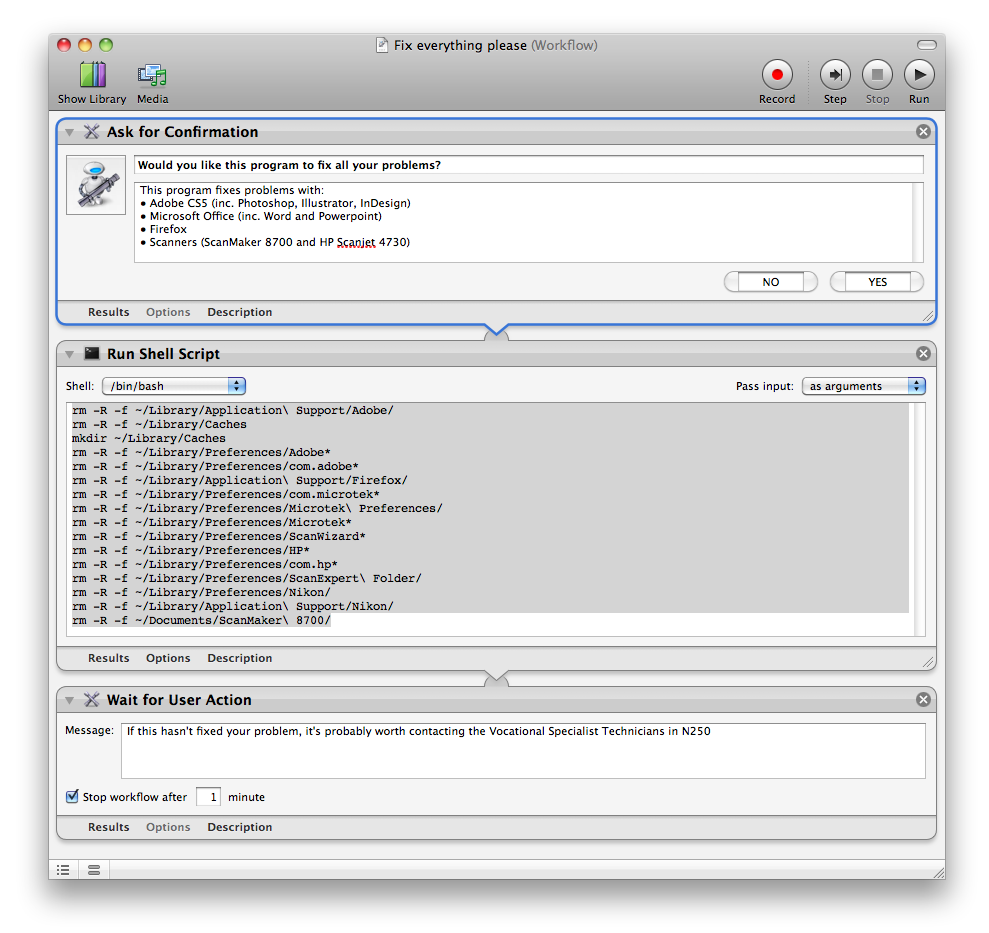
A while ago I had the idea of making a little application which fixes any little problems we have in the college with the Apple Mac accounts. Part of the trouble is to do with the Active Directory accounts, but a lot of the trouble comes from Applications coming up with errors related to the preferences.

Basically, this program deletes preferences and folders to all the programs which cause the most problems.

I made the program in Automator, and it basically just runs a shell script with a lot of 'rm' for removing stuff. I originally tried using a lot of the options in the library to find certain files and put them in the trash. This doesn't work for different users though, as they have a different location for their home drive. So I ended up using the '~' option to specify the users home drive:

these three lines remove anything related to Adobe:

rm -R -f ~/Library/Application\ Support/Adobe/
rm -R -f ~/Library/Preferences/Adobe*
rm -R -f ~/Library/Preferences/com.adobe*

this removes the key Firefox preferences, which cause it to say "A copy of Firefox is already open"
rm -R -f ~/Library/Application\ Support/Firefox/

this removes any ScanWizard preferences
rm -R -f ~/Library/Preferences/com.microtek*
rm -R -f ~/Library/Preferences/Microtek\ Preferences/
rm -R -f ~/Library/Preferences/Microtek*
rm -R -f ~/Library/Preferences/ScanWizard*
rm -R -f ~/Documents/ScanMaker\ 8700/

this removes any HP Scanner preferences
rm -R -f ~/Library/Preferences/HP*
rm -R -f ~/Library/Preferences/com.hp*
rm -R -f ~/Library/Preferences/ScanExpert\ Folder/

This removes Nikon references for the Nikon browser
rm -R -f ~/Library/Preferences/Nikon/
rm -R -f ~/Library/Application\ Support/Nikon/

This removes the Network Home Relocation for the Caches folder and makes a new one

rm -R -f ~/Library/Caches
mkdir ~/Library/Caches

I added the -R so that it would force the removal, and the -f so it doesn't come up with an error if the file/folder doesn't exist.

Here's a screenshot of the workflow in Automator:

Automator workflow for "Fix Everything Please"
It proves very popular amongst the students and staff here, and I just add to the list when another program has this sort of problem. I just have to work out a quick way of deploying it to all the workstations, hopefully make a '.pkg' file and put it to the task server.

Tuesday, 16 November 2010

Package Maker for OS X

Well, after finding out to some degree that Firefox 3.6.12 works perfectly on Active Directory I thought I'd try and role it out through the Task Server. First and final step was to make a package file which puts Firefox in the Applications folder with the right permissions.

It took some time but I found just dragging Firefox over the "drag contents here" dialogue on the left of the window added Firefox and also added Applications/ folder for the destination!. Tried it, it said it worked, even took a little time installing the files, and it just wouldn't appear in the Applications folder.

After trying "trial and error" I finally looked at the logs to find it saying it was "Diverting" or some similar wording, the files to some other place. I searched on the internet to find that you need to 'untick' the "Relocate" box. I think it's been finding "firefox" or reminants of Firefox  in the folder and so didn't want to overwrite it. Unticking the box finally worked which then showed some wierd results.

The wierd results were that once this was run, Guest and other logins couldn't run firefox. I thought of permissions issues might be the cause because I was logged in and made it from Firefox which I copied. I tried it from Cove login from the Firefox in the Applications folder with no luck. Finally I tried it from Cove and Firefox from the original DMG file downloaded from the interweb. The pkg file recommended a restart through ARD and this tended to work. Just a few more tests and I shall run it through the Task Server.

Should now be able to make more PKG files for distribution. Yay