So, new operating system new things to do. Just read the Help Center bit on "Connect to a network that requires 802.1X authentication". The interesting bit was:
In most cases your network administrator provides a configuration profile that contains the information and settings you need to authenticate with the network.
To get on the 802.1X you now need to do a lot of stuff. Looks like it needs a .mobileconfig file.
Just read this Apple Discussion on it which gives you a nice guide on how to do it.
After much time we finally got around to having a network administrator on the case.
So, we were looking for a way to connect to the wifi without using usernames and passwords. The answer was EAP-TLS. We followed the link above and created a certificate for the computer. Only trouble was we had problems enabling TLS on the wifi. Network administrator looking into this I think.
We resorted to PEAP I think. We made a .mobileconfig file using the iphone configuration utility, got hold of the wifi certificate, put that in the credentials payload of the .mobileconfig file, and loaded it up on the machine in question. It added the certificate to the Users keychain (not system!) and put the old 802.1X stuff in the network settings! When we turned the wifi on it tried to connect to the wifi (with the username and password we set in the .mobileconfig file) but it came up with an error. Could not verify the server. Looks like the configuration file was at fault. Seems that the certificate server is automatically dishing out expired certificates. Network administrator is trying to fix.
A handy page to manually create a .mobileconfig file with more settings then the iphone configuration utility can create was here. You can specify the certificate to be added to the system keychain, and also that the wifi loads at login window!
------
So far so good. Our network team has now made a new wifi SSID with EAP-TLS. Using this tutorial we made the machine have a signed certificate from the certificate server, and add the profile for the wifi. We used this certificate (with the username - host/DNSnameofMachineHere) to successfully get onto the wifi, but did it manually.
Next time we'll need to set this file up with the wifi details properly (we didn't add system login window stuff here).
-----
We're now giving up on the old 'manually edit the .mobileconfig file' and going for the 'Mavericks Server' option.
Here's the help page on it
So, we've set up a mavericks server (just a computer with Mavericks installed and the "Server" app installed).
I've enabled "Profile Manager" and set it up so in a browser you can go to:
http://YourMavericksServer.ac.uk/profilemanager
go to groups, general.
from the list of payloads, go to AD Certificate
found this article on how to configure the page
Not quite working yet. Getting an error when installing the profile.
Need to add devices, but I think it looks like you have to add users which are in charge of devices? Not sure.
Showing posts with label authentication. Show all posts
Showing posts with label authentication. Show all posts
Wednesday, 11 July 2012


Friday, 30 March 2012
OS X multiple login scripts - sendlogon and NHR
So, after having NHR running for quite a while, it looks like we also need to have sendlogon running at login. This isn't the first time I've had to have multiple login scripts. I remember doing this for BootPicker back when it wasn't included in the operating system.
So to do this I will use the system already in place thanks to NHR. At the moment, at login, the file /etc/login.hook runs. This runs any scripts within the /etc/hooks folder which begin with "Li". The same thing happens for logout but with any files beginning with "Lo". So, all I have to do is to rename the "login.sh" script something like "Lisendlogon.hook" and it will run at login.
Now, this "lisendlogon.hook" script simply contains the command to run the "sendlogon" program plus the right syntax to put after it. i.e. the server and the current users credentials. This is how it looks:
The sendLogon is in the /usr/bin folder, as this is where their tutorial says it should be.
After testing this, I need to make an install pkg file to run from the task server. I like using IceBerg.
So, here's some screenshots from it:
I got slightly confused as to which folder to make the default destination?
I'll test it out on a computer suite machine to see if it works.
After a little testing, it looks like it didn't put sendLogon into /usr/bin! After trying a few things it turns out it was down to the "Default Destination". After setting this as "/" it worked. It looks like this is basically the folder which all installation folders have in common.
Tested and works fine.
Cheers
So to do this I will use the system already in place thanks to NHR. At the moment, at login, the file /etc/login.hook runs. This runs any scripts within the /etc/hooks folder which begin with "Li". The same thing happens for logout but with any files beginning with "Lo". So, all I have to do is to rename the "login.sh" script something like "Lisendlogon.hook" and it will run at login.
Now, this "lisendlogon.hook" script simply contains the command to run the "sendlogon" program plus the right syntax to put after it. i.e. the server and the current users credentials. This is how it looks:
#!/bin/tcsh
/usr/bin/sendLogon dns.name.of.server.com 3898 $1
The sendLogon is in the /usr/bin folder, as this is where their tutorial says it should be.
After testing this, I need to make an install pkg file to run from the task server. I like using IceBerg.
So, here's some screenshots from it:
 |
| Iceberg - fix NHR and sendlogon settings page |
 |
| postflight installation scripts. |
writeloginhook.sh contains:
#!/bin/tcsh
sudo defaults write com.apple.loginwindow LoginHook /etc/login.hook
which tells the operating system to run /etc/login.hook at login.
 |
| iceberg - files section. Later found the default destination needs to be "/" |
I'll test it out on a computer suite machine to see if it works.
After a little testing, it looks like it didn't put sendLogon into /usr/bin! After trying a few things it turns out it was down to the "Default Destination". After setting this as "/" it worked. It looks like this is basically the folder which all installation folders have in common.
 |
| Iceberg - files section with the correct "default destination" as the lowest common folder. |
Tested and works fine.
Cheers
Wednesday, 28 September 2011
New Web Filter - Bloxx and sendLogon deployment on OS X
So we've now got a new web filtering system which needs testing on the Macs and then deploying. The new system is currently running alongside the old, the later of which will slowly be phased out.
The new system does come with one small bonus for the Apple Macs as it works alongside a program called "sendLogon" which sends the credentials of the user to the server and automatically authenticating them to use the internet. This sendLogon was downloaded here, and comes with instructions:
To deploy this the idea is to create a pkg file which copies the two files login.sh and sendLogon to /usr/bin and also sends the command for the LoginHook.
Note that all the Macs I will run this on do not have any login scripts which run from the computer and hence it doesn't matter if you overwrite the login.sh file. For those who do have login scripts then they will need to append to this file, which isn't too hard.
I will use the Iceberg App to create the pkg file and run it through the task server to deploy to all computer suites and staff machines.
We did have a choice whether to control the LoginHook from the Xserver or just have the clients controled locally. We chose the later as ICT Services do not control the Xserver, which is just used for the one Directorate.
I shall note in a later post how I created the pkg file.
The new system does come with one small bonus for the Apple Macs as it works alongside a program called "sendLogon" which sends the credentials of the user to the server and automatically authenticating them to use the internet. This sendLogon was downloaded here, and comes with instructions:
Running sendLogon automatically on Mac OSXThis all worked splendidly. Our server address is XXX.XXX.XXX.21. The proxy settings are XXX.XXX.XXX.23 port 8080 though. Just need to remember that the computer has to be in the list of this filter system as using the sendLogon program (took me 20 mins before I remembered this!).
You need to take the following steps:
1) Download the Send Logon program from http://www.bloxx.com/downloads/sendLogon_osx_10.4.universal.tar.gz to the desktop.
2) Browse to ‘Applications->Utilities’ and run the ‘Terminal’ application.
3) Type ‘cd ~/Desktop’.
4) Type 'tar zxvf sendLogon_osx_10.4.universal.tar.gz'.
5) Type ‘sudo cp sendLogon /usr/bin’ and enter your password when prompted.
6) Type ‘sudo nano /usr/bin/login.sh’.
7) Enter the following lines:
#!/bin/tcsh
/usr/bin/sendLogon3898 $1
8) When finished, press ctrl-o followed by return, to save the file.
9) Press ctrl-x to exit.
10) Run the following commands to set the correct permissions on the utility and login script:
sudo chmod 755 /usr/bin/login.sh
sudo chmod 755 /usr/bin/sendLogon
11) Run the following command:
sudo defaults write com.apple.loginwindow LoginHook /usr/bin/login.sh
The sendLogon utility should now run for every user that logs on.
To deploy this the idea is to create a pkg file which copies the two files login.sh and sendLogon to /usr/bin and also sends the command for the LoginHook.
Note that all the Macs I will run this on do not have any login scripts which run from the computer and hence it doesn't matter if you overwrite the login.sh file. For those who do have login scripts then they will need to append to this file, which isn't too hard.
I will use the Iceberg App to create the pkg file and run it through the task server to deploy to all computer suites and staff machines.
We did have a choice whether to control the LoginHook from the Xserver or just have the clients controled locally. We chose the later as ICT Services do not control the Xserver, which is just used for the one Directorate.
I shall note in a later post how I created the pkg file.
Monday, 26 September 2011
Office 2008 - Word file "is being used by another user" Error
One of the members of staff constantly gets the error message:

Some file is being used by "another user". Would you like to make a copy
It was quite a frustrating problem because you could open the Word .doc file in Pages, save it as another .doc file and then open it back up in Word. Of course the problem might pop up again with this new file.
It took about 25 mins to figure it out, thanks to the help of this forum. At the top I was reminded that there needs to be a ".TemporaryItems folder", in the folder which contains the Users home drives. I did this quite a few years ago.
Further down it also mentions Spotlight causing the issue. Simply make sure your Home Drive is in the "Privacy" section of Spotlight Preferences. Because I didn't want to log the user off, I also stopped the process as well called "Quick Look Helper". Worked a charm.

Of course I don't as yet know if you need to do this per user or per machine. I shall update this post when I find out.
In conclusion, I would also like to say that this is just a work around. You should not have to turn off Spotlight as it has a lot of good functions. I should think this is a problem with Microsoft Office 2008. I would also recommend Microsoft to make more accurate error messages. i.e. Your file is being used by another process. This process is: Spotlight. This would help solve problems a lot quicker and more efficiently.
Thursday, 21 July 2011
ARD - Apple Remote Desktop - Authentication Problem Adding computers to list
I've had a problem with ARD for a long time now and only within the last few weeks found out a work around.
When trying to add new machines to my lists in ARD from the "Scanner", the authentication window pops up for less then 1 second and then disappears! The machine doesn't get added to any list. The same occurs if you try to do anything on an unauthenticated computer (i.e. not in a list) including; view the screen, control the screen, send unix commands etc... I have OS X 10.6.6, but I've had this problem also on 10.5.8, ARD 3, but this problem might have been present in ARD 2 also (it's been a while). I also have a 10.4.11 server running as a Task Server.
Things I tried.

When trying to add new machines to my lists in ARD from the "Scanner", the authentication window pops up for less then 1 second and then disappears! The machine doesn't get added to any list. The same occurs if you try to do anything on an unauthenticated computer (i.e. not in a list) including; view the screen, control the screen, send unix commands etc... I have OS X 10.6.6, but I've had this problem also on 10.5.8, ARD 3, but this problem might have been present in ARD 2 also (it's been a while). I also have a 10.4.11 server running as a Task Server.
Things I tried.
- I thought it might be a problem with the ARD client so I reinstalled and updated, restarted the service.
- It might be a problem at my end. So I've reinstalled ARD, although I've not been brave enough to delete all my plist files and preferences. I could have also tried logging in as another user and adding the machine, this would have ruled out my preferences.

I finally just tried adding a machine manually (in the bottom left corner + sign of a computer list), all you need is the IP address and authentication details (username and password) and it worked perfectly.
Note (26-07-2012): Well, I finally figured it out (a year later). Turns out it's a conflict with IP addresses. We use DHCP addressing here, and if an IP address hasn't been used in a while it'll get given to another computer. I've replaced a few old ones and a couple had taken the IP addresses of the older macs. When I tried adding them it would notice another one in its' list with that IP address and not know what to do.
To fix, simply find the computer with the same IP address in the master list, right click and get info. Delete the IP address (as it obviously isn't that anymore), and adding the new machine will work perfectly.
Note (26-07-2012): Well, I finally figured it out (a year later). Turns out it's a conflict with IP addresses. We use DHCP addressing here, and if an IP address hasn't been used in a while it'll get given to another computer. I've replaced a few old ones and a couple had taken the IP addresses of the older macs. When I tried adding them it would notice another one in its' list with that IP address and not know what to do.
To fix, simply find the computer with the same IP address in the master list, right click and get info. Delete the IP address (as it obviously isn't that anymore), and adding the new machine will work perfectly.
Thursday, 7 July 2011
Setting up the new 27" iMacs
Setup started with the simple "hold down the n button" to netboot/netinstall. The first problem was that the current netinstall image would not work on the new iMacs, doh! So I set about making a new one. The old deploy studio RC20 seems to crash whilst making an image, so I needed to use a newer one. This newer one imaged without crashing, but when netbooting came up with a message saying the server needed updating to cope with the new netboot image.
The next thing I tried was to put an iMac in target disk mode and just reimage it using a 24" imac with I know works. I put the Mac Pro 10.6.6 image on it but would not boot up. This was probably due to new drivers not being on the image!
My last attempt is to start from scratch (or nearly from scratch) and install everything. I updated the operating system to the latest 10.6.8. I took a shortcut though and used "Migration Assistant" to pull across applications from the 10.6.6 image. This worked and only required me to install the newest of things. Heres a list of things which is now on the new iMac:
The next thing I tried was to put an iMac in target disk mode and just reimage it using a 24" imac with I know works. I put the Mac Pro 10.6.6 image on it but would not boot up. This was probably due to new drivers not being on the image!
My last attempt is to start from scratch (or nearly from scratch) and install everything. I updated the operating system to the latest 10.6.8. I took a shortcut though and used "Migration Assistant" to pull across applications from the 10.6.6 image. This worked and only required me to install the newest of things. Heres a list of things which is now on the new iMac:
- Adobe CS5
- Final Cut Studio
- Firefox 4
- Acrobat 9 Pro
- Papercut client
- Celtx
- Office 2008 (required rosetta)
- Handbrake
And drivers
- Scanwizard
- Dell 3110 driver
- Pixma Driver
- Konica Driver
- HP Scanner 4370
- Wacom tablet
- Flip4Mac
After all this I tried a students account. It required 2 login attempts to get me in though. I then tried all the apps. The problems I encountered were:
- Photoshop crash on launch
- Illustrator crash on launch
- Indesign crash on launch
- Acrobat crash on launch
These were probably due to NHR (network home relocation) script not installed. I installed it and Photoshop and Acrobat started working. Unfortunately Illustrator nor InDesign would work! They worked perfectly fine on a local login. I ran the CS5 install again, and also updated Illustrator to 15.0.2 and InDesign to 7.0.4. Illustrator would crash on load up, and indesign would crash on the "new document" screen which comes up first. My only clue was a message which popped up in console which I can't quite remember now. Something to do with transport2app error 255.
Just relogged in and tried it again. The error's I'm getting from the console are:
07/07/2011 14:01:43 kernel smbfs_vnop_link: warning: pid 665(Adobe Illustrato) hardlink(~v3vZO_cBdNvr4jqB)
07/07/2011 14:01:49 mdworker32[673] kCGErrorFailure: Set a breakpoint @ CGErrorBreakpoint() to catch errors as they are logged.
07/07/2011 14:01:51 mdworker[658] CFPropertyListCreateFromXMLData(): Old-style plist parser: missing semicolon in dictionary.
The first refers to the smbfs (samba file system) which must be the home drive of the student which is hosted on a windows share.
The only real difference is that the operating system in 10.6.8 instead of 10.6.6. I think I will have to redo this on a 10.6.6 machine....
So, redone a 10.6.6 version and migrated everything from 10.6.8 iMac. Everything worked! (apart from Adobe Acrobat and Dreamweaver. Acrobat crashes and dreamweaver gets stuck even loading up. I installed NHR and still the same. Interestingly Illustrator worked without NHR!
Looking into the issue a little more, I found that NHR is not entirely working. I've noticed that the caches folder is not being relocated, although the fonts folder is? I will have to look into this further. At the time I thought this was due to the test account having the links set up already from another machine, but thinking about it now these links should be deleted on logout! So now I'm thinking about it, it was originally working and now somehow it is not working any longer.
So, redone a 10.6.6 version and migrated everything from 10.6.8 iMac. Everything worked! (apart from Adobe Acrobat and Dreamweaver. Acrobat crashes and dreamweaver gets stuck even loading up. I installed NHR and still the same. Interestingly Illustrator worked without NHR!
Looking into the issue a little more, I found that NHR is not entirely working. I've noticed that the caches folder is not being relocated, although the fonts folder is? I will have to look into this further. At the time I thought this was due to the test account having the links set up already from another machine, but thinking about it now these links should be deleted on logout! So now I'm thinking about it, it was originally working and now somehow it is not working any longer.
Wednesday, 2 March 2011
Squid proxy server setup for iTunes authentication through another proxy
Yay, nice new shinny iPads. What could possibly go wrong. Doh! iTunes doesn't like the proxy server.
# ----------------------------------------------------------------------
# WARNING - do not edit this template unless you know what you are doing
# ----------------------------------------------------------------------
# the parent cache
cache_peer xxx.xxx.1.3 parent 8080 7 no-query no-digest no-netdb-exchange default login=username:password
# disk and memory cache settings
acl everything src all
cache deny everything
maximum_object_size 4096 KB
# store coredumps in the first cache dir
coredump_dir /usr/local/squid/var/logs
# the hostname squid displays in error messages
visible_hostname localhost
# log & process ID file details
cache_access_log /usr/local/squid/var/logs/squid-access.log
cache_log /usr/local/squid/var/logs/squid-cache.log
cache_store_log /usr/local/squid/var/logs/squid-store
pid_filename /tmp/squid.pid
# Squid listening port
http_port 8080
# Access Control lists
acl localhost src 127.0.0.1/32
acl to_localhost dst 127.0.0.0/8 0.0.0.0/32
acl manager proto cache_object
acl SSL_ports port 443
acl Safe_ports port 80 # http
acl Safe_ports port 21 # ftp
acl Safe_ports port 443 # https
acl Safe_ports port 70 # gopher
acl Safe_ports port 210 # wais
acl Safe_ports port 1025-65535 # unregistered ports
acl Safe_ports port 280 # http-mgmt
acl Safe_ports port 488 # gss-http
acl Safe_ports port 591 # filemaker
acl Safe_ports port 777 # multiling http
acl CONNECT method CONNECT
acl allowed src 127.0.0.1
acl godirect dstdomain .somewhere.co.uk
# Only allow cachemgr access from localhost
http_access allow manager localhost
http_access deny manager
# Deny requests to certain unsafe ports
http_access deny !Safe_ports
# Deny CONNECT to other than secure SSL ports
http_access deny CONNECT !SSL_ports
# protect web apps running on the proxy host from external users
http_access deny to_localhost
# rules for client access go here
http_access allow localhost
http_access allow allowed
# after allowed hosts, deny all other access to this proxy
# don't list any other access settings below this point
http_access deny all
# specify which hosts have direct access (bypassing the parent proxy)
always_direct allow godirect
always_direct deny all
# hierarchy stop list (squid-recommended)
hierarchy_stoplist cgi-bin ?
# refresh patterns (squid-recommended)
refresh_pattern ^ftp: 1440 20% 10080
refresh_pattern ^gopher: 1440 0% 1440
refresh_pattern -i (/cgi-bin/|\?) 0 0% 0
refresh_pattern . 0 20% 4320
always_direct deny all
never_direct allow all
 In the end, I just used the default settings, under General I put HTTP port to 8080, Visible hostame to localhost.

After speaking with the Network administrator, he showed me a mac already in use with ipod touches. The set-up on this machine uses a deamon called "Squid", which acts as a local proxy server. So this authenitcates itself with the real proxy server, and all programs on the machine communicate with squid as a localhost, so everything works just fine. It starts at startup,but I think it should start at login.
Here's the config files, squid.conf:
# ----------------------------------------------------------------------
# WARNING - do not edit this template unless you know what you are doing
# ----------------------------------------------------------------------
# the parent cache
cache_peer xxx.xxx.1.3 parent 8080 7 no-query no-digest no-netdb-exchange default login=username:password
# disk and memory cache settings
acl everything src all
cache deny everything
maximum_object_size 4096 KB
# store coredumps in the first cache dir
coredump_dir /usr/local/squid/var/logs
# the hostname squid displays in error messages
visible_hostname localhost
# log & process ID file details
cache_access_log /usr/local/squid/var/logs/squid-access.log
cache_log /usr/local/squid/var/logs/squid-cache.log
cache_store_log /usr/local/squid/var/logs/squid-store
pid_filename /tmp/squid.pid
# Squid listening port
http_port 8080
# Access Control lists
acl localhost src 127.0.0.1/32
acl to_localhost dst 127.0.0.0/8 0.0.0.0/32
acl manager proto cache_object
acl SSL_ports port 443
acl Safe_ports port 80 # http
acl Safe_ports port 21 # ftp
acl Safe_ports port 443 # https
acl Safe_ports port 70 # gopher
acl Safe_ports port 210 # wais
acl Safe_ports port 1025-65535 # unregistered ports
acl Safe_ports port 280 # http-mgmt
acl Safe_ports port 488 # gss-http
acl Safe_ports port 591 # filemaker
acl Safe_ports port 777 # multiling http
acl CONNECT method CONNECT
acl allowed src 127.0.0.1
acl godirect dstdomain .somewhere.co.uk
# Only allow cachemgr access from localhost
http_access allow manager localhost
http_access deny manager
# Deny requests to certain unsafe ports
http_access deny !Safe_ports
# Deny CONNECT to other than secure SSL ports
http_access deny CONNECT !SSL_ports
# protect web apps running on the proxy host from external users
http_access deny to_localhost
# rules for client access go here
http_access allow localhost
http_access allow allowed
# after allowed hosts, deny all other access to this proxy
# don't list any other access settings below this point
http_access deny all
# specify which hosts have direct access (bypassing the parent proxy)
always_direct allow godirect
always_direct deny all
# hierarchy stop list (squid-recommended)
hierarchy_stoplist cgi-bin ?
# refresh patterns (squid-recommended)
refresh_pattern ^ftp: 1440 20% 10080
refresh_pattern ^gopher: 1440 0% 1440
refresh_pattern -i (/cgi-bin/|\?) 0 0% 0
refresh_pattern . 0 20% 4320
always_direct deny all
never_direct allow all
To get this running there is some things to run, there might be a GUI. But thinking about it, the machine was running 10.6, and I'm running 10.5, doh! I'll have to check out if it works on this first.
So, it doesn't come with 10.5. Downloaded latest version and found this website. Didn't work. You need a compiler which doesn't come on the mac, doh! Tried installing GCC compiler, which doesn't work either! Doh!
So I searched for a GUI for Squid and found SquidMan. Works very nicely, with no messing about with compiling, yay. Had a little trouble getting it to work. What is also good is that you can manipulate the config file it uses! So I copied and pasted from above, but errors came up about permission to write to log files. I left the log files section alone and pasted the rest but it came up with permission denied.
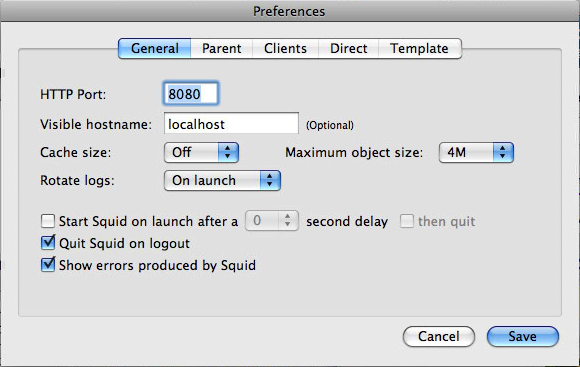 In the end, I just used the default settings, under General I put HTTP port to 8080, Visible hostame to localhost.
Under parent I put "Use a parent proxy server", hostname proxy.chesterfield.ac.uk port 8080, and ticked "Parent requires authentication. But putting username and password here doesn't seem to work. Leaving them blank asks you for a username and password when the service starts and works without putting domains in. Yay!
Subscribe to:
Posts (Atom)