Tuesday, 31 July 2012

Joomla pop-up logins

I think it's all the rage now-a-days to have fancy pop-up login screens. It means it doesn't take up any 'real-estate' on the home page.

Here's a few free plugins for Joomla which can do it:

  • Q Login Popup
    • requires registration to download
    • as it took a while to get the validation
    • adds itself as a module
      • you just have to "publish" it and put it in a position
      • also, put you want it to appear on all pages
    • colour didn't match, so I re-did the button. Placed it in 
      • /modules/mod_qloginpopup/images/login.png
  • YJ Pop Login
    • downloaded without registration
    • it adds a module
      • you just have to "publish" it and put it in a position
      • also, put you want it to appear on all pages
    • It just showed all of it (not just the button). Javascript must have a conflict somewhere

Monday, 30 July 2012

Creating a Joomla Template

So, I've made a few websites in Joomla now, but I've only been able to 'cobble' them together either by editing existing templates, or by deleting content from a traditional website I've made and putting the right code it.

This second way is close enough to the real thing. I've found this nice tutorial on how to do it for Joomla 1.5. But it's not too different from the latest version (2.5).

I think the easiest way is to have your own machine setup as a webserver (see this blog on setting that up) and editing the files locally, and easily seeing what Joomla makes of it by viewing the pages through the web browser.

On top of this I found this youtube video explaining how you can setup dreamweaver to interact with the website locally so you can edit all files in dreamweaver. To do it:

  1. Set up a new site in Dreamweaver
  2. edit the local folder to that of the joomla site
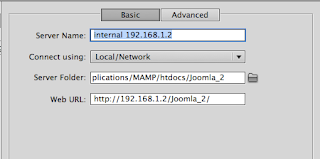
  3. in server enter the web URL which you need to type in the browser to access the site
  4. Make sure you tick the "testing" box

Here are some screenshots:
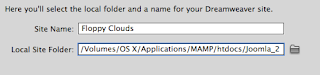
locate the local root folder for that particular joomla website

enter the weburl that the computer has to go to view the website

Make sure to tick the "testing" box.
If you havent got a new template in the joomla site yet, just create the folder within the templates folder, make index.php and templateDetails.xml files (found tutorial here), then go to extensions > extension Manager > Discover > press Discover button. If you're templateDetails.xml file is the correct format then you should see it in the list. Tick and click install.

To edit a template:

  1. load up its "index.php" in it's own template folder
  2. click "live view"
  3. click yes to the dialogue box
  4. you will need to change the address of the viewing page to the root of the joomla site. i.e. you are editing the main template, which changes the whole site. So you view the website like normal
I did have a few problems refreshing whatever changes I'd made. The simplist was to just go to File > Save All, which would then work.

Saturday, 28 July 2012

Enabling Smart search in Joomla

Now I'm getting on with my website thought it best to add some sort of search. Just as I'm adding a module I see "Smart Search" and "Search". Which one?

So, did a little search on google and found this article from Joomla.org. It seems that "Smart Search" is a newer and fancier "Search" which pretty much replaces the "Search". Even has autocomplete (who needs google now).

So I thought I'd quickly mention the steps to putting this search box onto the Joomla website:
  1. Enable the "Content - Smart Search" plugin in "Plug-in Manager"
    1. by changing the red circle to a green circle.
  2. Index your website
    1. click on "Components" > "Smart Search"
    2. then click on the large icon labelled "Index" at the top
    3. this might take a while depending on the size of your website
  3. Make a "Smart Search" Module with a position on your website
    1. Go to Module Manager
    2. New module
    3. Type = Smart Search
    4. select a position
    5. Save
  4. Cheers

Wednesday, 25 July 2012

Creating a blog and posting using www.blogger.com


  1. Load up a web browser, and in the address bar, type: http://www.blogger.com
  2. If you have a ‘Google account’ then you can “Sign In”, if not then click the “Sign Up” button.
  3. Now you have an account you can create a Blog.
  4. Name your blog something relevent to the information you will put on it.
  5. This will be the web-address of your blog. Make it short and relevent.
  6. Choose how you want it to look (this can be changed afterwards) and click “Create blog”
  7. Click “New Post” button to the right of the blog you created
  8. Give your post a title.
  9. Write your article here
  10. Click “Publish” when you’re finished
Finished Tutorial Here:->


Saturday, 21 July 2012

installing Trains and Zeppelin Mod for Minecraft

So, my son would like to play this "Trains and Zeppelin Mod" for minecraft. Talk about complicated! I've got a mac which adds a little more complication. Anyway, here's how to do it:

  1. go to terminal and type:
    1. cp ~/Library/Application\ Support/minecraft/bin/minecraft.jar ~/Library/Application\ Support/minecraft/bin/minecraft_backup1.jar
      1. this creates a backup of your .jar file
    2. mkdir ~/temp
      1. this makes a folder in your home folder called temp
    3. cd ~/temp
      1. this moves you into this folder
    4. jar xf ~/Library/Application\ Support/minecraft/bin/minecraft.jar
      1. this unzips the .jar file into the temp folder
  2. download:

    1. Modloader -> download file here
    2. ModloaderMp -> download file here
    3. Minecraft Forge API -> download file here
    4. Trains and Zeppelin Mod -> download file here
  3. unzip these zip files (double click on them)
  4. copy, in the order downloaded, all the contents of these zip files to the ~/temp/ folder on your home drive
    1. a dialogue box will appear saying something along the lines of:
      1. do you want to overwrite this file
    2. tick the "apply to all" box and click "replace"

  5. finally, go back to "Terminal" and type:
    1. jar uf ~/Library/Application\ Support/minecraft/bin/minecraft.jar ./
      1. this zips the temp folder up into the .jar file in the right location
When the game is now loaded, it will tell you down the bottom left that there are 4 mods, and it should all work.

I had a bit of trouble before, but I've found I did things a little different then suggested. Heres some things I did different:
  1. I loaded the game up after just installing the Modloader, ModloaderMp and Minecraft Forge API without the Trains mod installed.
    1. I then went through the process again, and added the Trains and Zeppelin Mod
  2. I didn't delete the META-INF folder in the .jar file
  3. I couldn't find the trainconfig.cfg file.
    1. turns out it is automatically made when minecraft is started.
    2. doesn't look like this file works on Mac OS X 10.6.8?!
    3. None of the Keys work!!!!!!
Hope it helps.

One note I'd like to make is:
  • Why is this such a long winded process. The way I would like to add Mods is to:
    • double click a file which loads and says it's installed!
But, I ask myself, why don't I do this. Well I guess I expect too much.

Thursday, 12 July 2012

sendLogon and NHR for OS X 10.7

So, I'm just setting up some new machines with OS X 10.7.4 installed. I tried to install the NHR and sendlogon scripts which I implemented here, but looking into it, it doesn't seem to work.

The NHR side which redirects folders from the networked home drive to a local folder works beautifully, but when I browse the internet, it doesn't let me on sites which i am authorised to go on? So, to conclude, the LIsendLogon.hook isn't running properly.

The one thing I wanted to happen was to get the loginhook to run a script which in turn ran a sendLogon script and the NHR script. But it was an 'either/or' situation. I could never have both scripts running no mater how hard I tried.

After trying many different things, I ended by just giving up and putting the lines for sendLogon into the LIclean.hook script at the bottom. Very frustrating.

I did find an interesting and useful article on running a centralised login script here.

I also found a nice little course on the subject of scripting which I found very useful here and another here

Wednesday, 11 July 2012

Creating a bootable OS X 10.7 install disk

As i was looking into imaging some new iMacs, I came across this article on how to create a mac bootable 10.7 disk. Simple procedure really:


  1. go into recovery mode (command + R)
  2. plug in external drive
  3. reinstall mac os x
  4. select external drive to install on
  5. after it has finished downloading, and has gone to a black screen, unplug external hard drive.
  6. the file InstallESD.dmg will be on the external. This is what you want.
  7. load up disk utility and restore this image on a volume
  8. done